Sleep Timer
Music Speed Changer has a built-in sleep timer that pauses playback after the time you set.

Music Speed Changer has a built-in sleep timer that pauses playback after the time you set.
Setting the Sleep Timer
Tap the three dots at the top of the editor and select Sleep Timer.
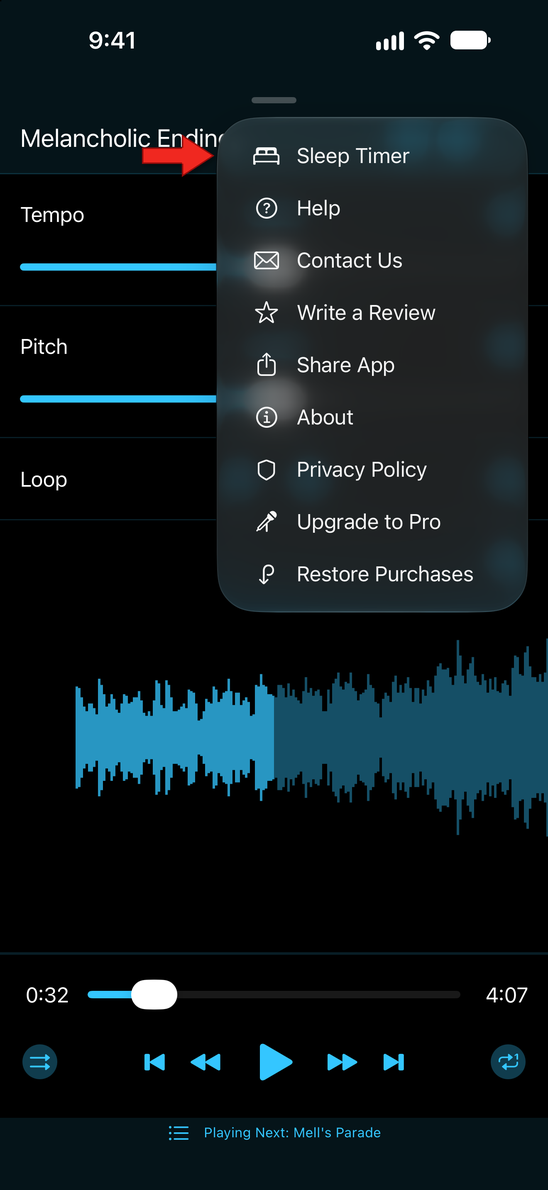
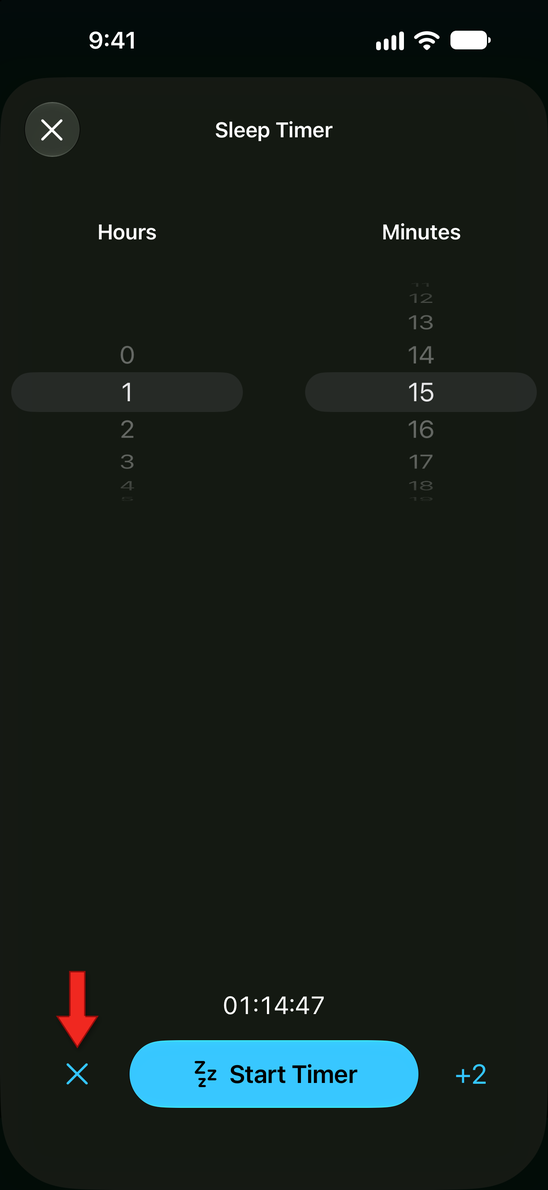
The Sleep Timer screen opens.
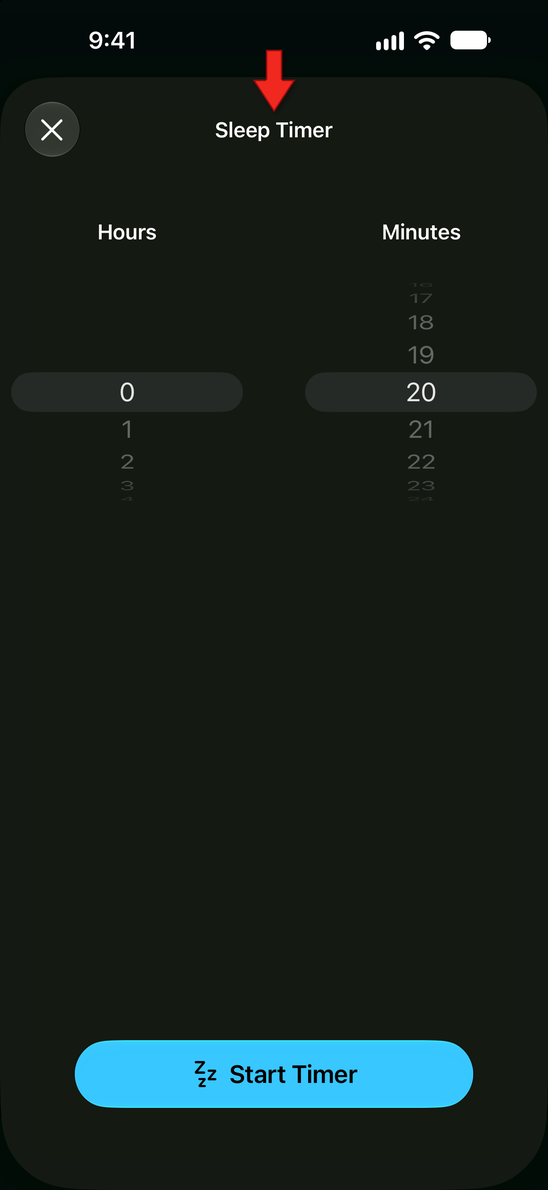
Use the Hours and Minutes wheels to set how long you want the music to play.
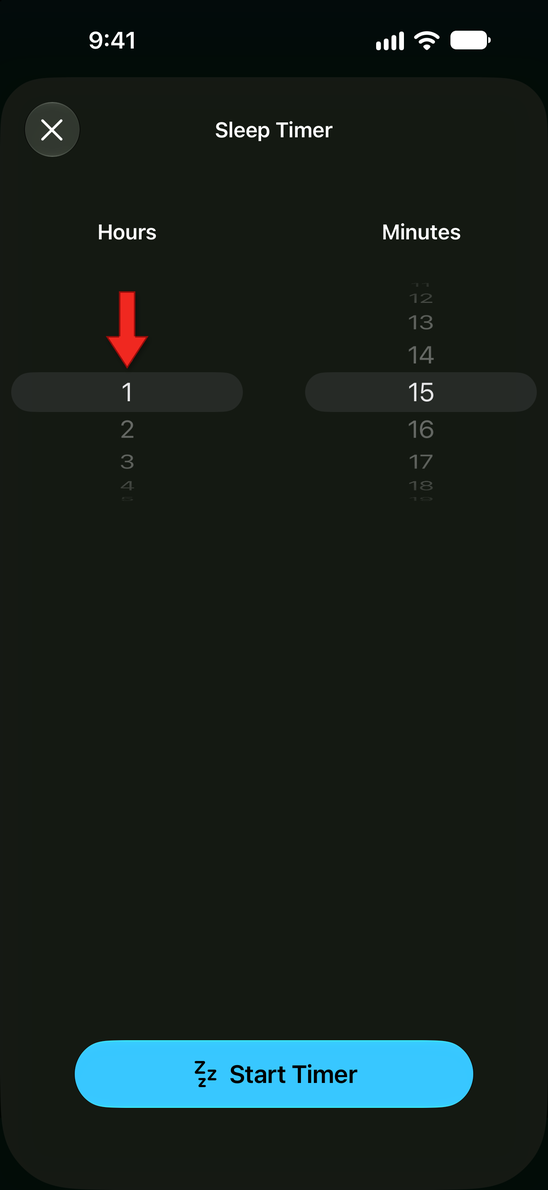
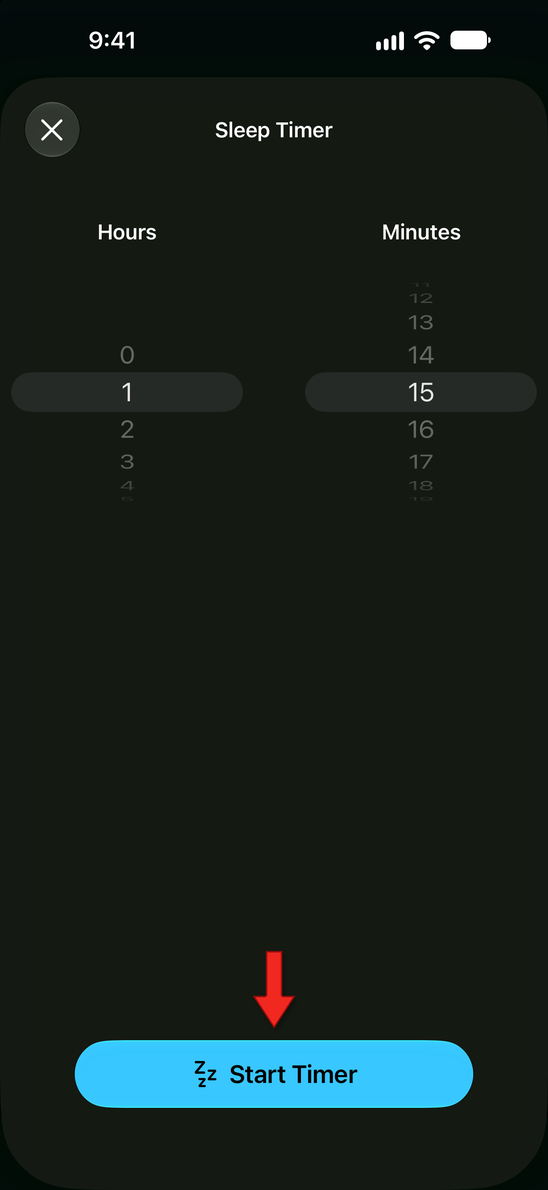
Tap Start Timer.
While the timer is running, the time remaining is shown above the button. Tap +2 to add two minutes, or tap the X to cancel the timer.
When the timer reaches zero, playback pauses.
Using the iOS Clock Timer Instead
iOS also has a universal "sleep timer" functionality that works for any audio or video playing app, including Music Speed, Apple Music, YouTube, podcasts, audiobooks, and third-party music streaming services. It is found in the Clock app on your iPhone or iPad.
- Open the Clock app and tap the "Timer" tab at the bottom.
- Use the scrolling dials to set the duration you want your music to play (e.g., 30 minutes, 1 hour, etc.).
- Tap "When Timer Ends", scroll all the way to the very bottom of the list of alarm sounds, and select "Stop Playing."
- Tap the "Set" button in the top right corner, then tap the "Start" button to begin your timer.
When the timer reaches zero, instead of playing an audible alarm sound, your iPhone will stop playing all audio and video and lock your screen.
Once you set "Stop Playing" as the action for "When Timer Ends," the Clock app remembers this setting. If you regularly use the Timer for other purposes where you do want an audible alarm (e.g., cooking, exercise), remember to go back into the Clock app and change the "When Timer Ends" setting back to a tone or sound when you're done with the sleep timer. Otherwise, your next timer will silently stop playing media instead of alerting you.
You can also use Siri to set this up quickly. For example, you can say, "Hey Siri, stop playing in 30 minutes," after you've started your music.
How did we do?
Upgrading to Pro
