Trim an Audio Track
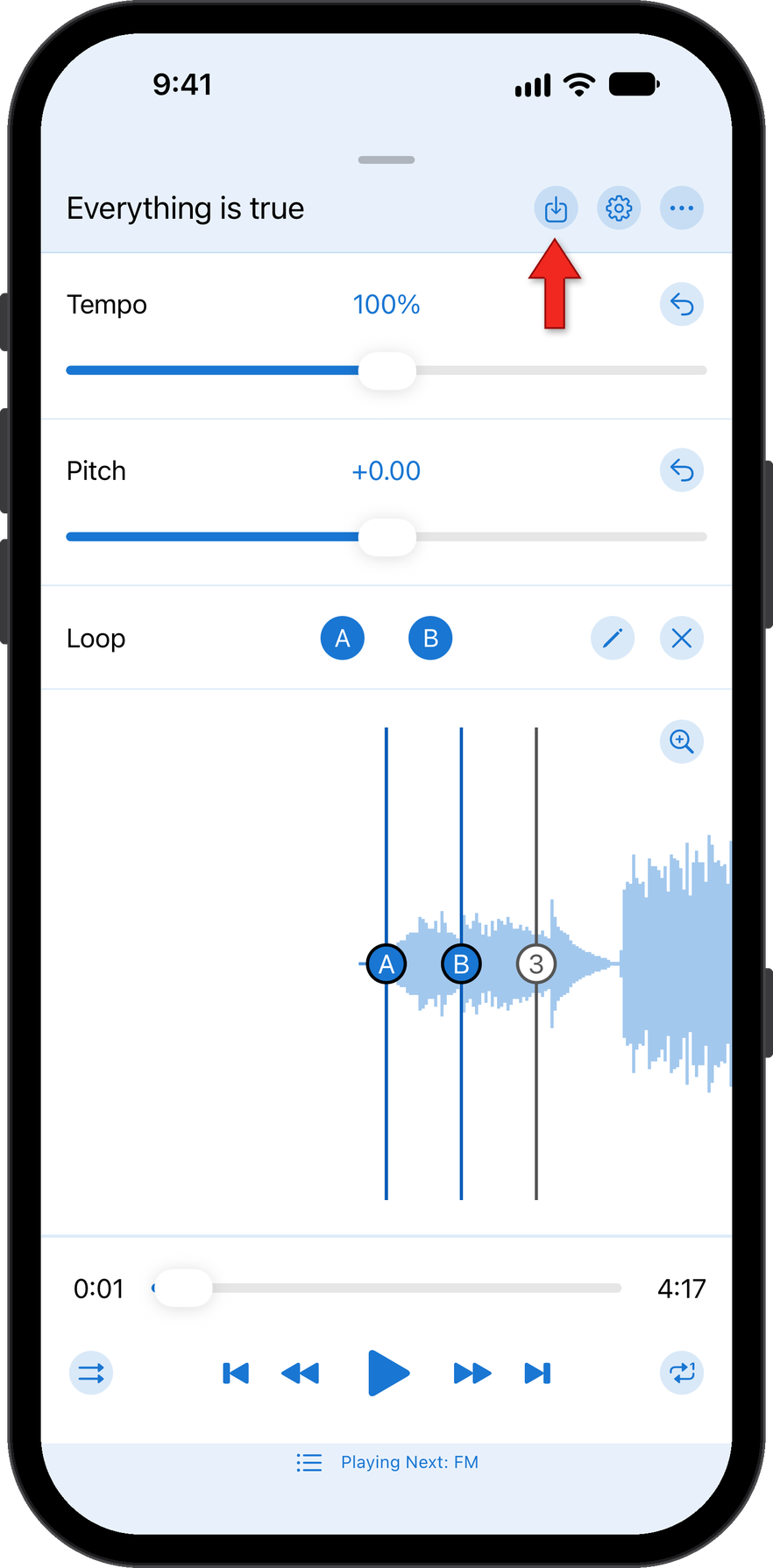
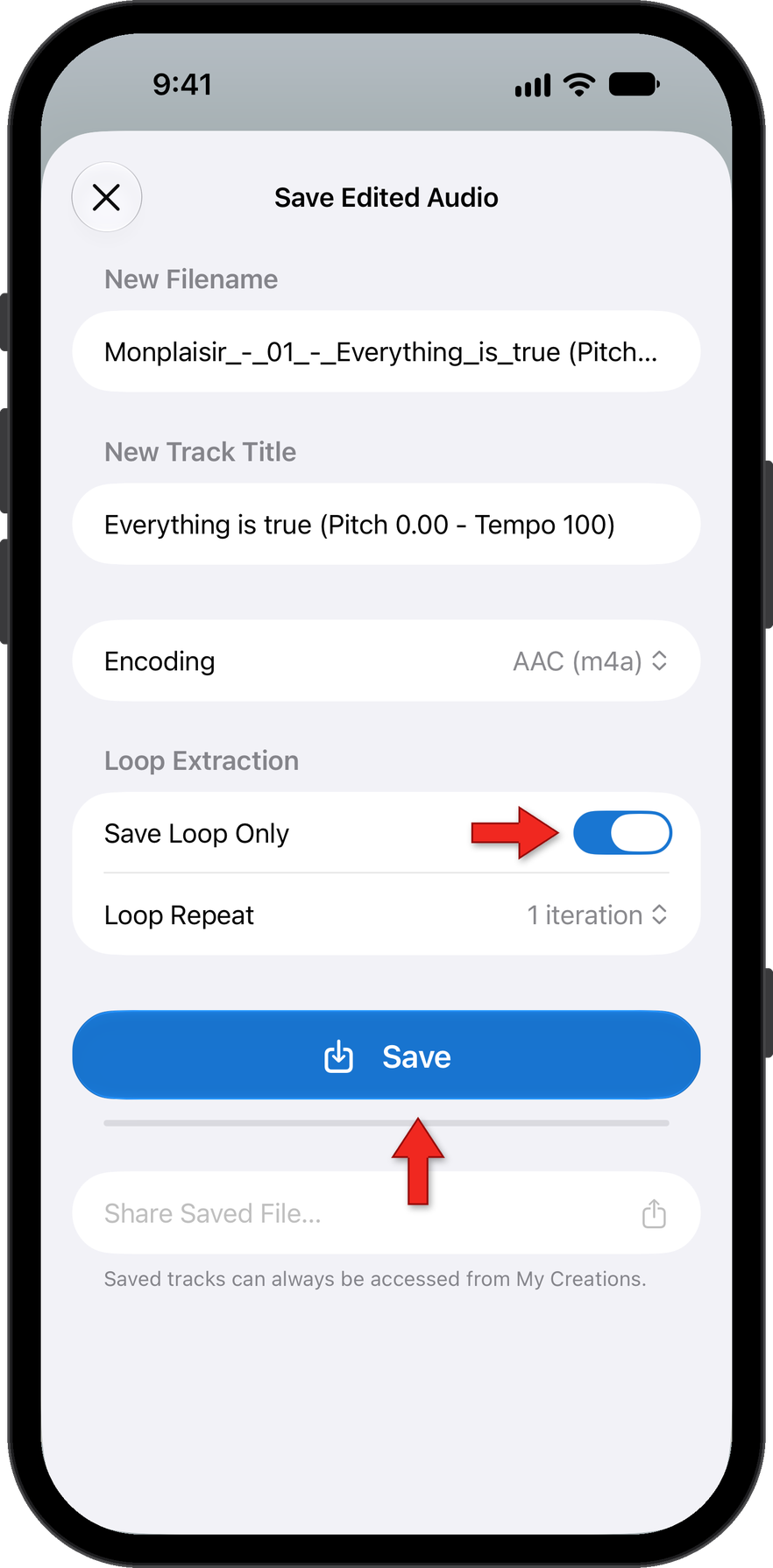
To trim a track, use the A/B loop points to mark the start and end of the final track and tap the save button at the top of the editor, the box with the down arrow. Select Save Loop Only, and tap Sav…

To trim a track, use the A/B loop points to mark the start and end of the final track and tap the save button at the top of the editor, the box with the down arrow. Select Save Loop Only, and tap Save. The new track will start where A was set and end where B was set, and can be found in the My Creations section of the app.
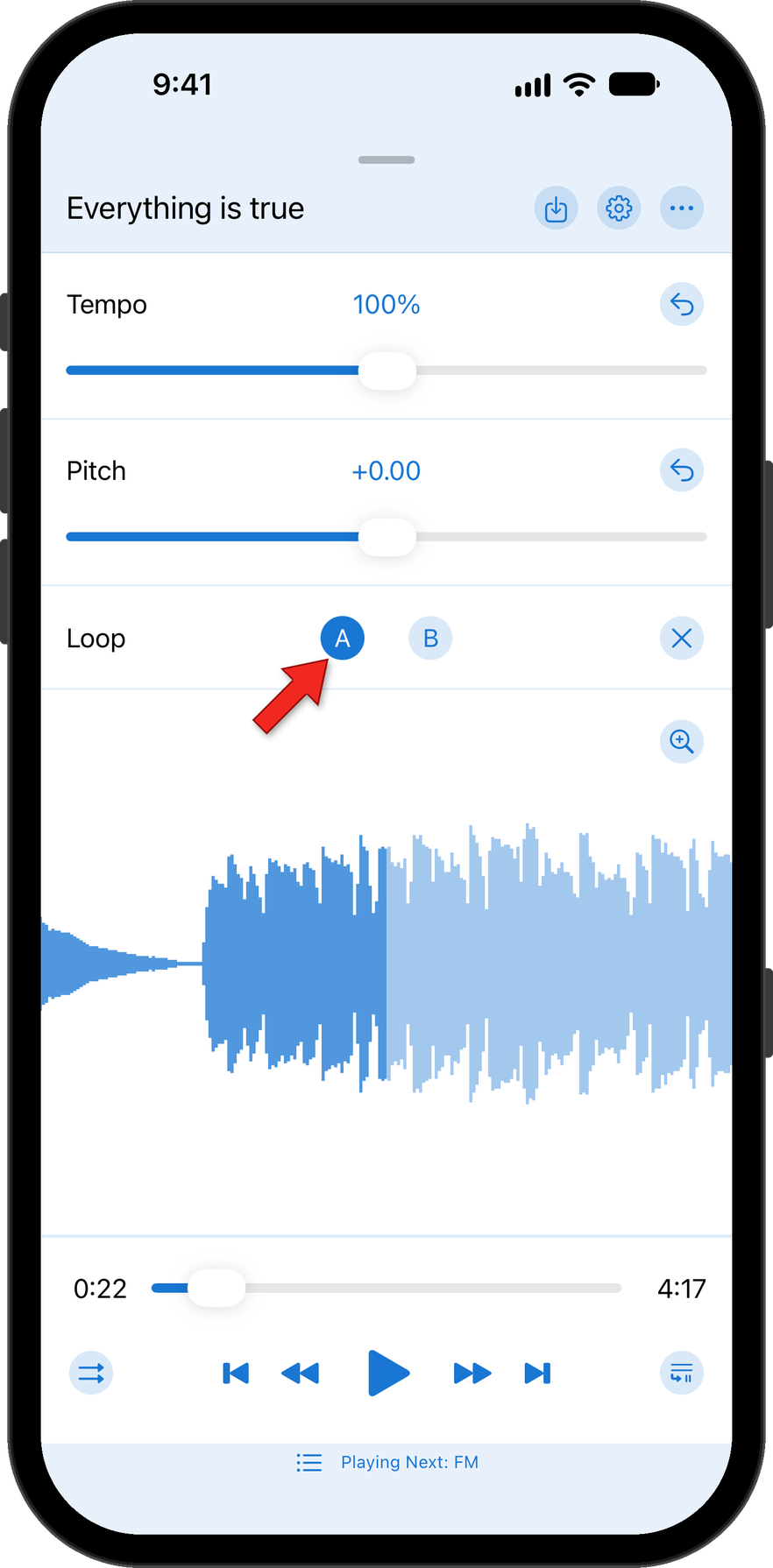
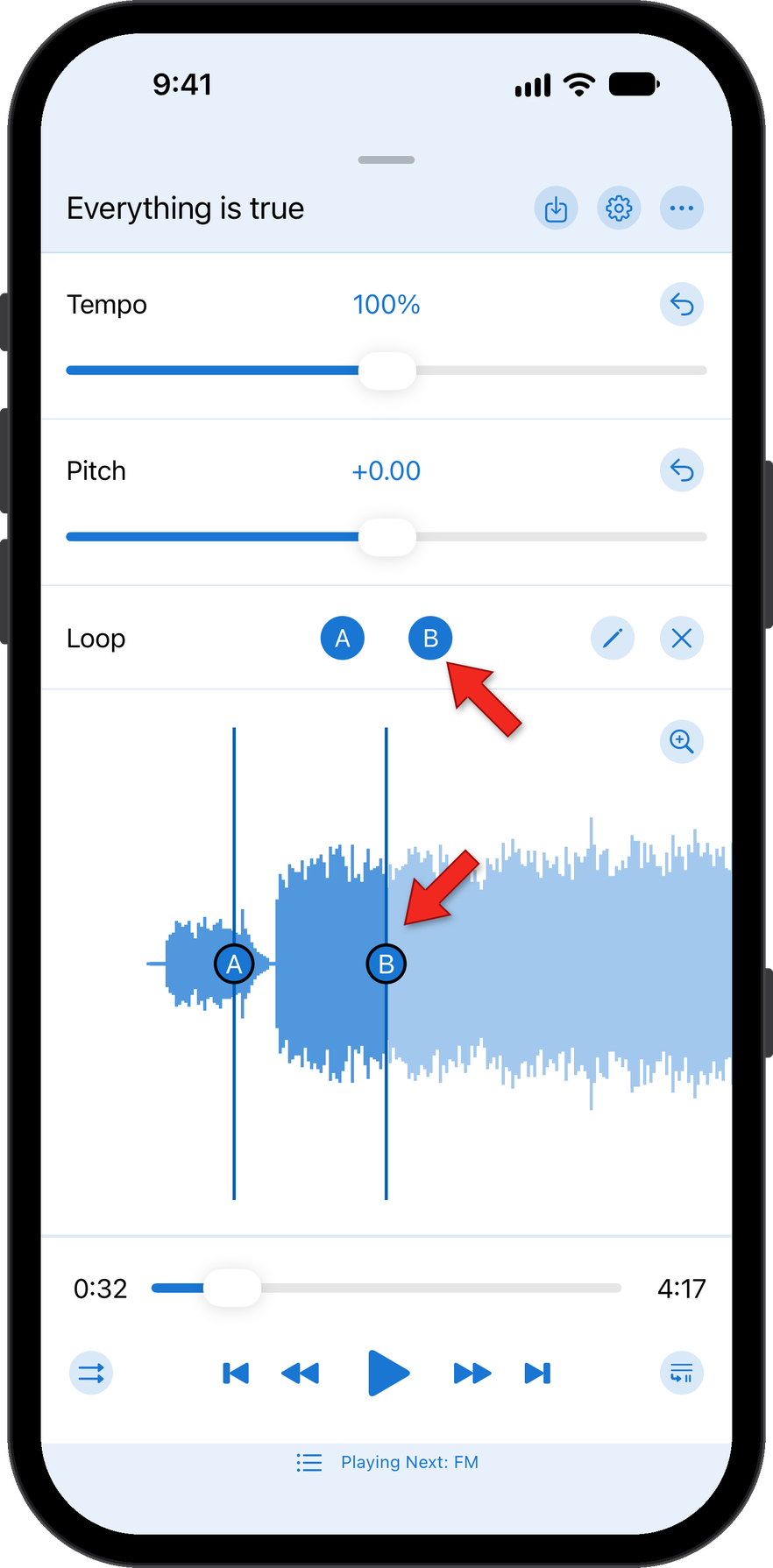
In the loop section of the editor, tap on the A button to set a start (A) point of the trimmed track. Go to the position in the track where you want to end the trim, and tap on the B button to set an end (B) point.
The segment of the track between A and B will become the new track.
To save, tap on the down arrow box symbol at the top of the editor.
On the save option screen, turn on the option Save Loop Only and then tap Save.
How did we do?
Markers in Audio Tracks
Pitch Controls for Pitch Shifting
