Markers in Audio Tracks
Music Speed Changer has an audio file "bookmark" functionality named Markers for setting numerous points in a track to mark important parts of the audio. The marker function is useful for remembering…

Music Speed Changer has an audio file "bookmark" functionality named Markers for setting numerous points in a track to mark important parts of the audio. The marker function is useful for remembering practice points, rehearsal parts, and easily moving around A/B loop points. The Markers are saved by the app, so they can help you quickly jump to important places in the audio and also be assigned to A and B loop points from the marker menu.
Adding Markers Functionality to the Editor
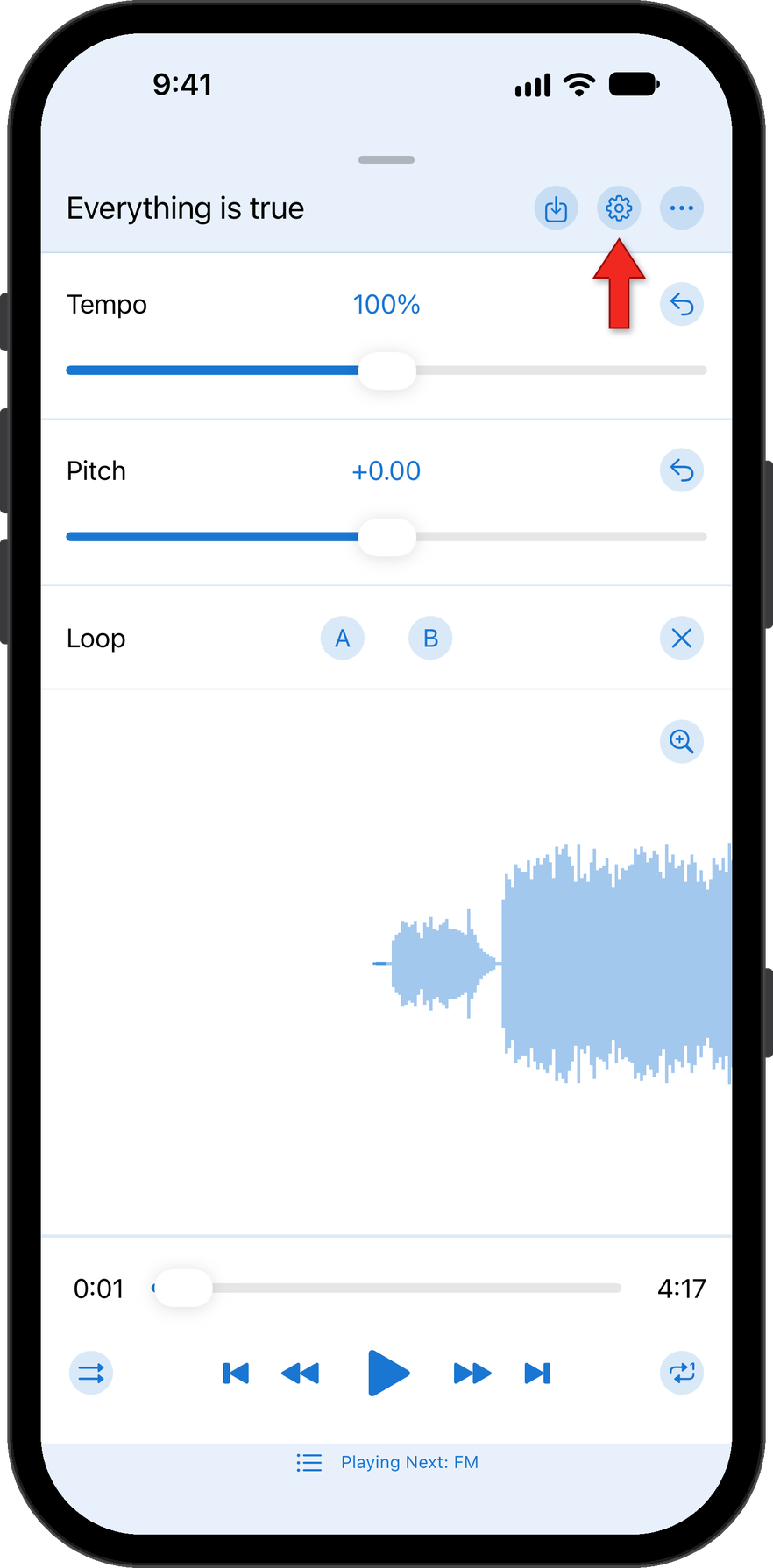
Open Settings by tapping on the gear at the top of the editor.
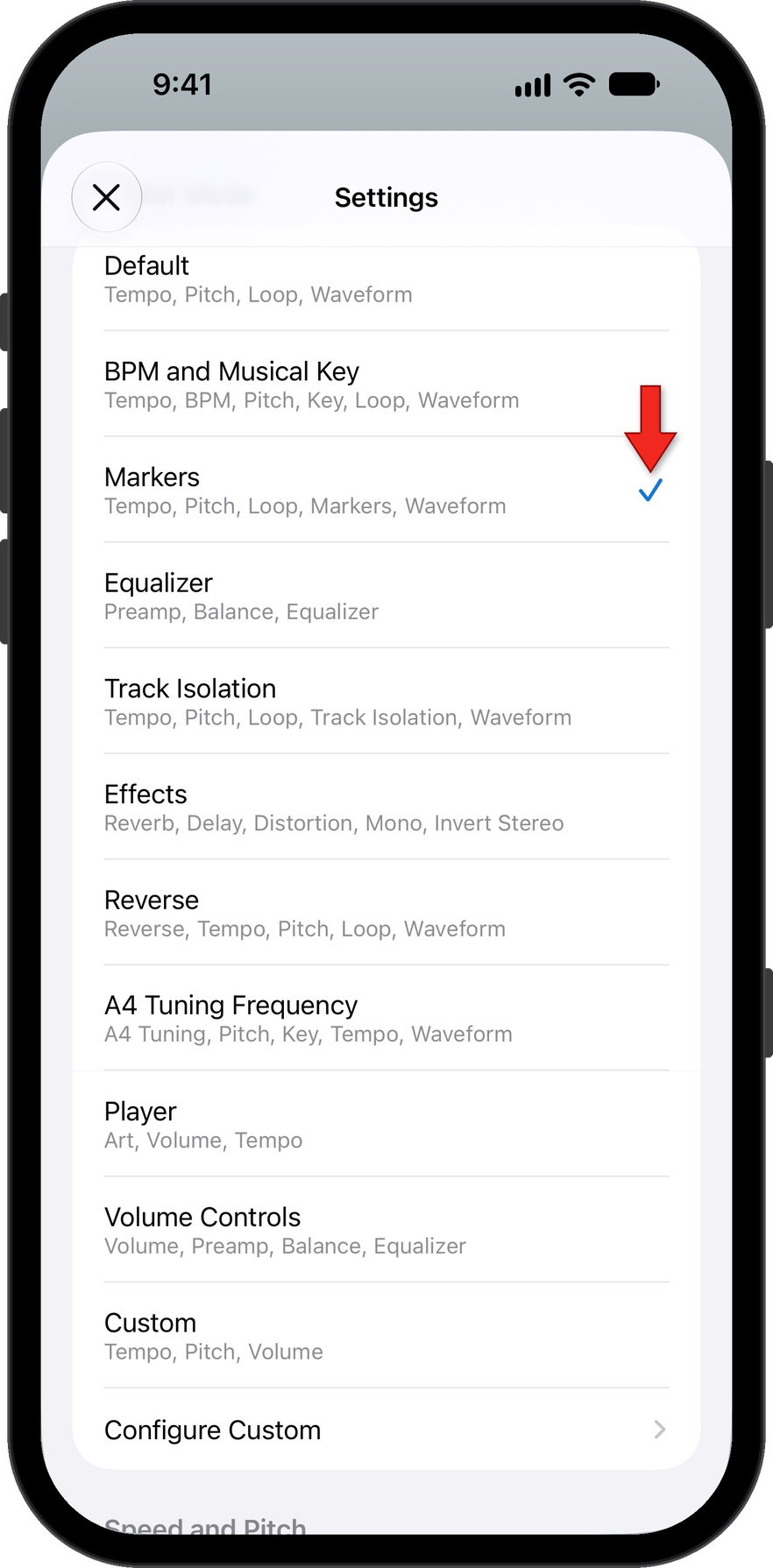
Select Markers by tapping on the Marker section in settings.
Using Markers to Bookmark Your Audio
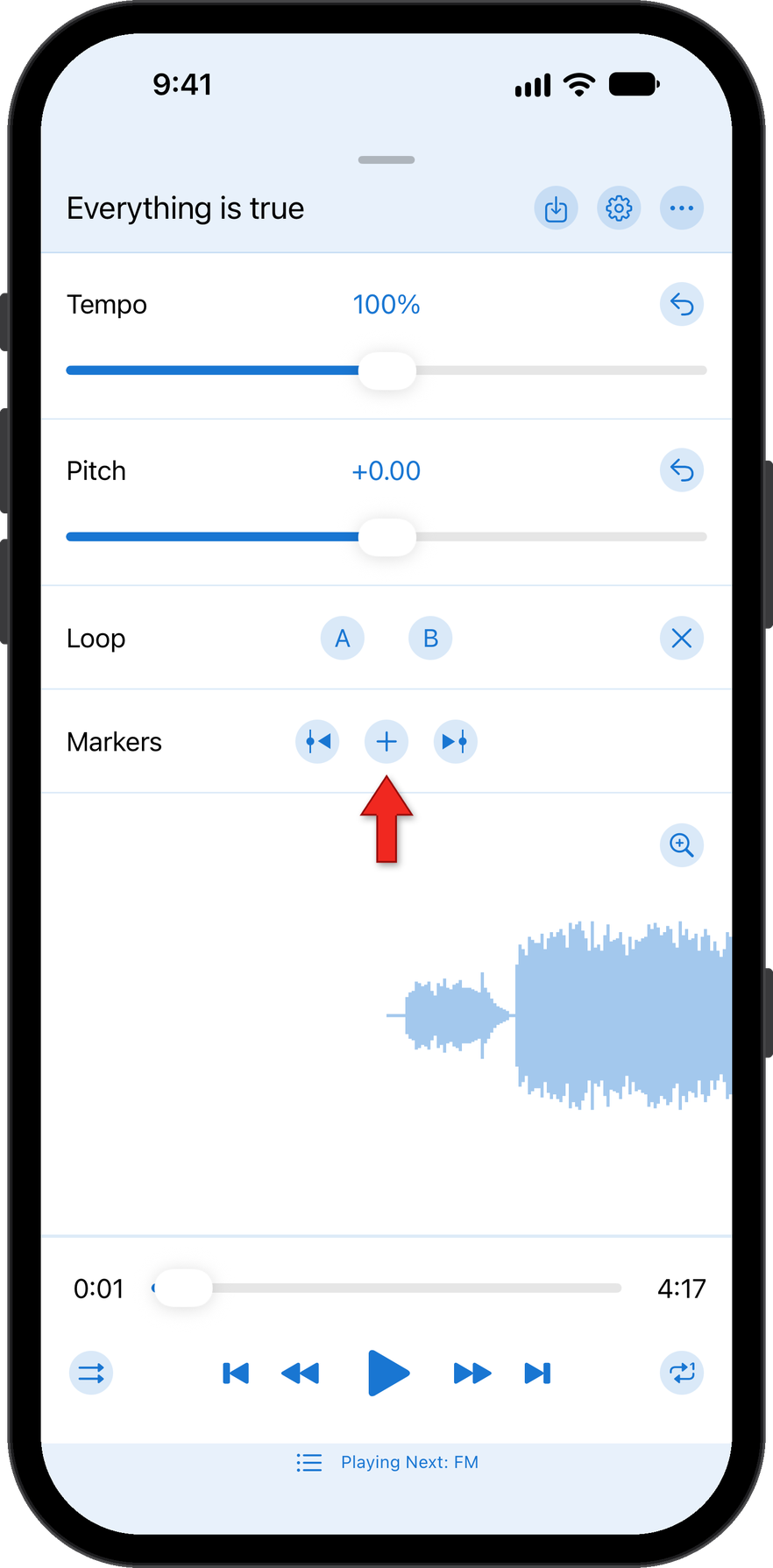
The editor now has a section called Markers. To add a marker at the current location of the audio file, tap the plus button.
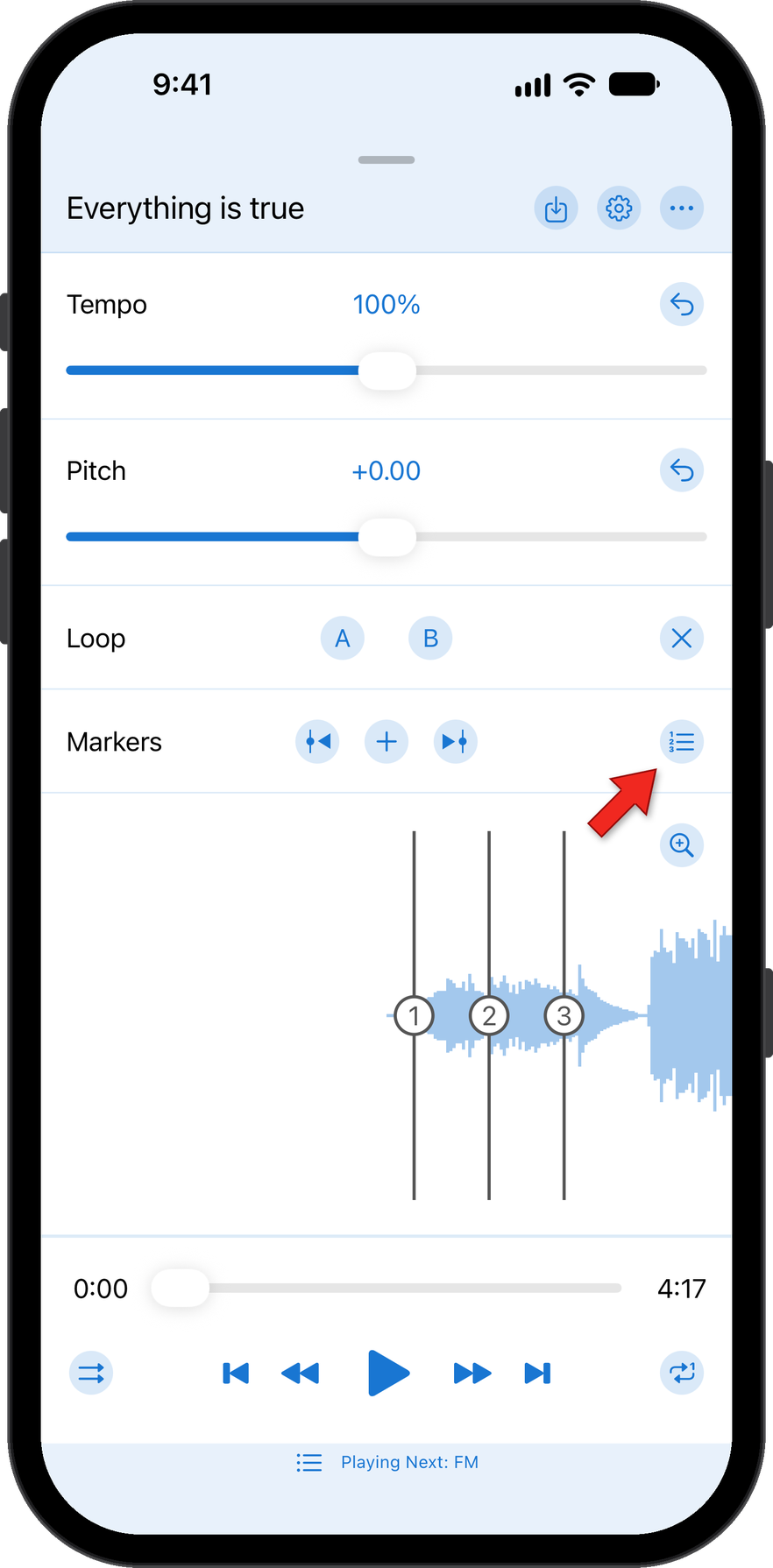
The markers are numbered. To add labels to markers, delete them, or assign them to A/B loop points, tap the markers edit menu button.
Tap and hold the marker you want to name.
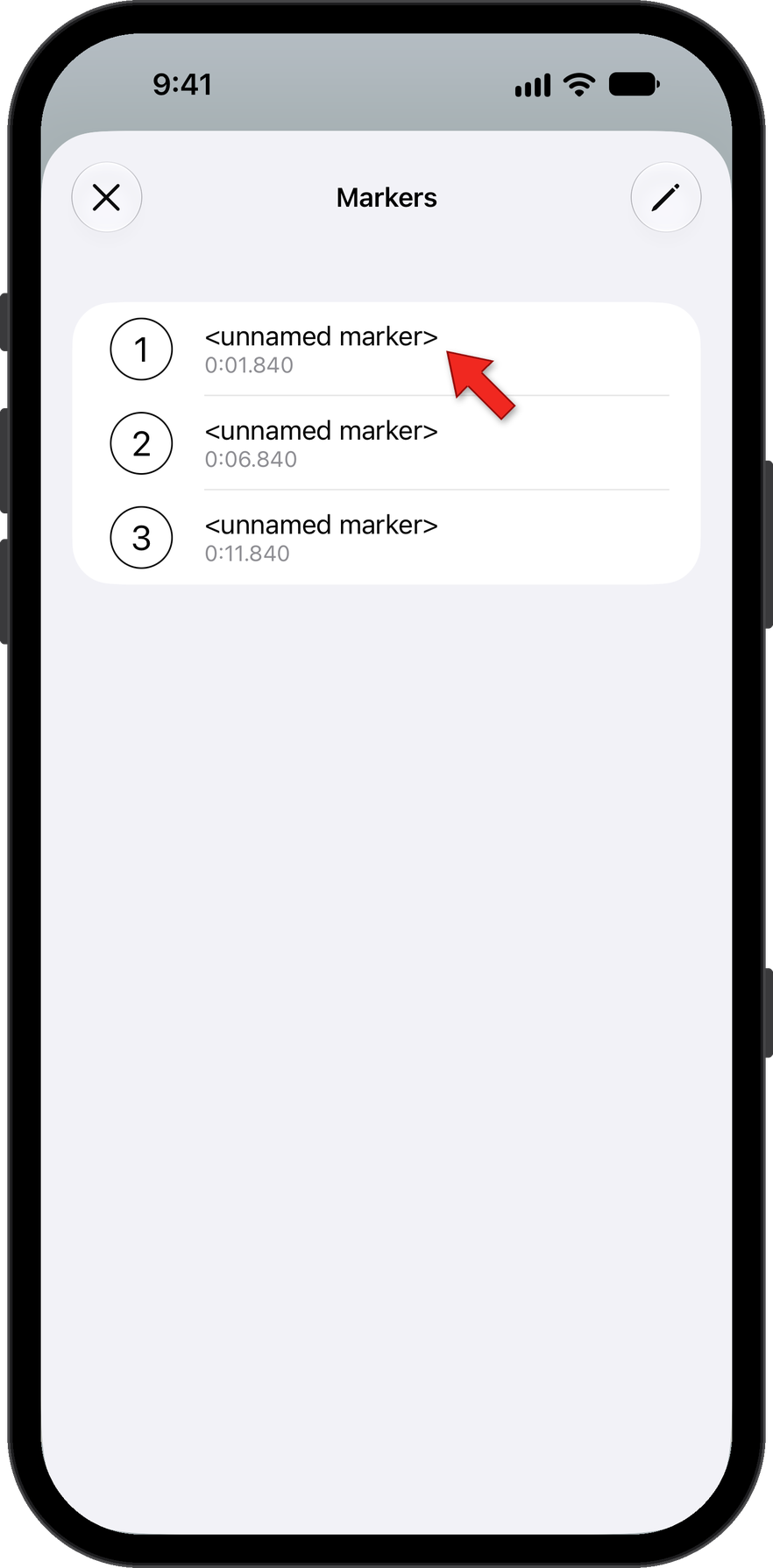
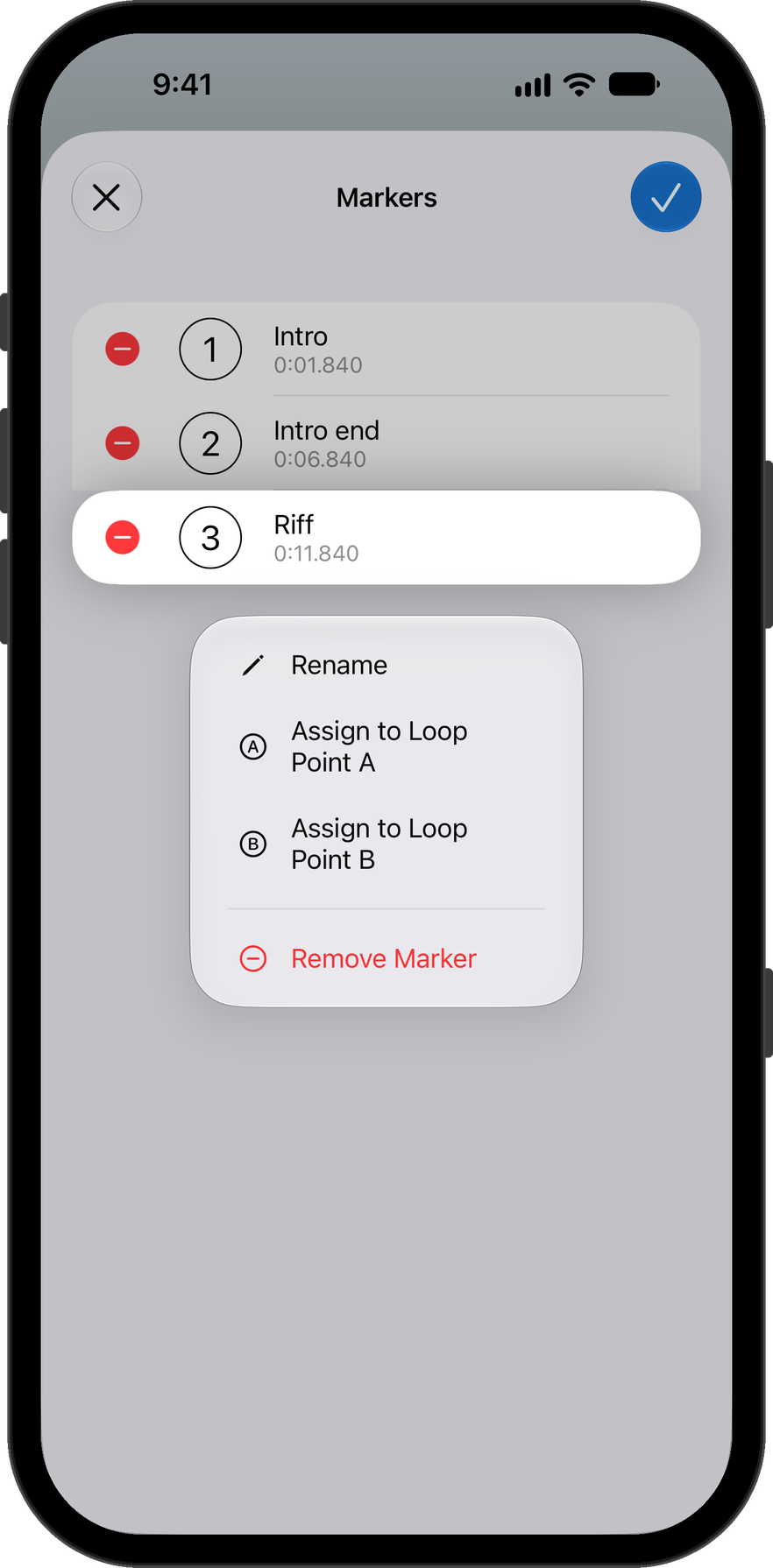
This brings up the marker options menu. Here you name the marker or assign it to the A or B loop points.
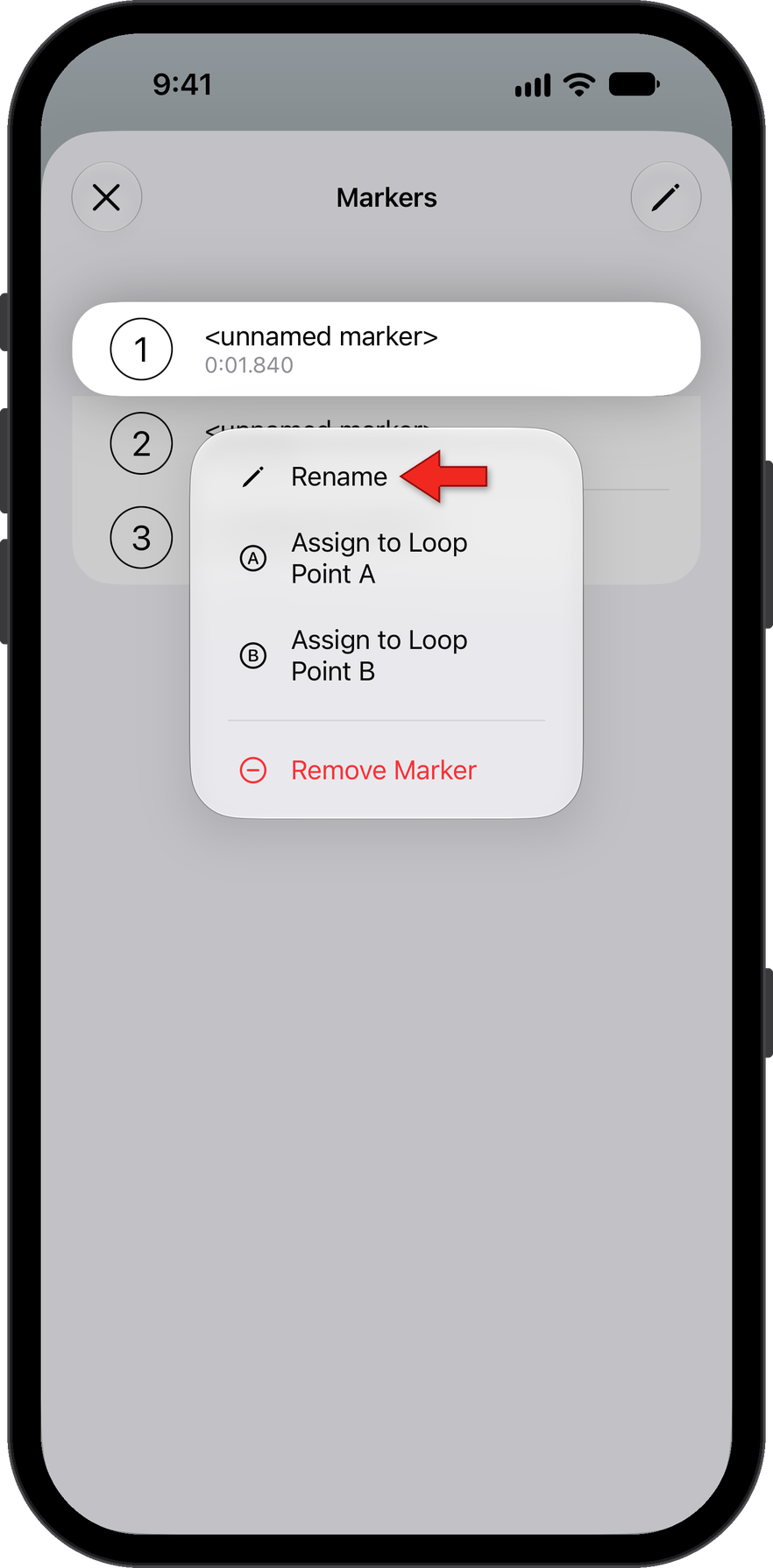
Enter a description to name the marker.
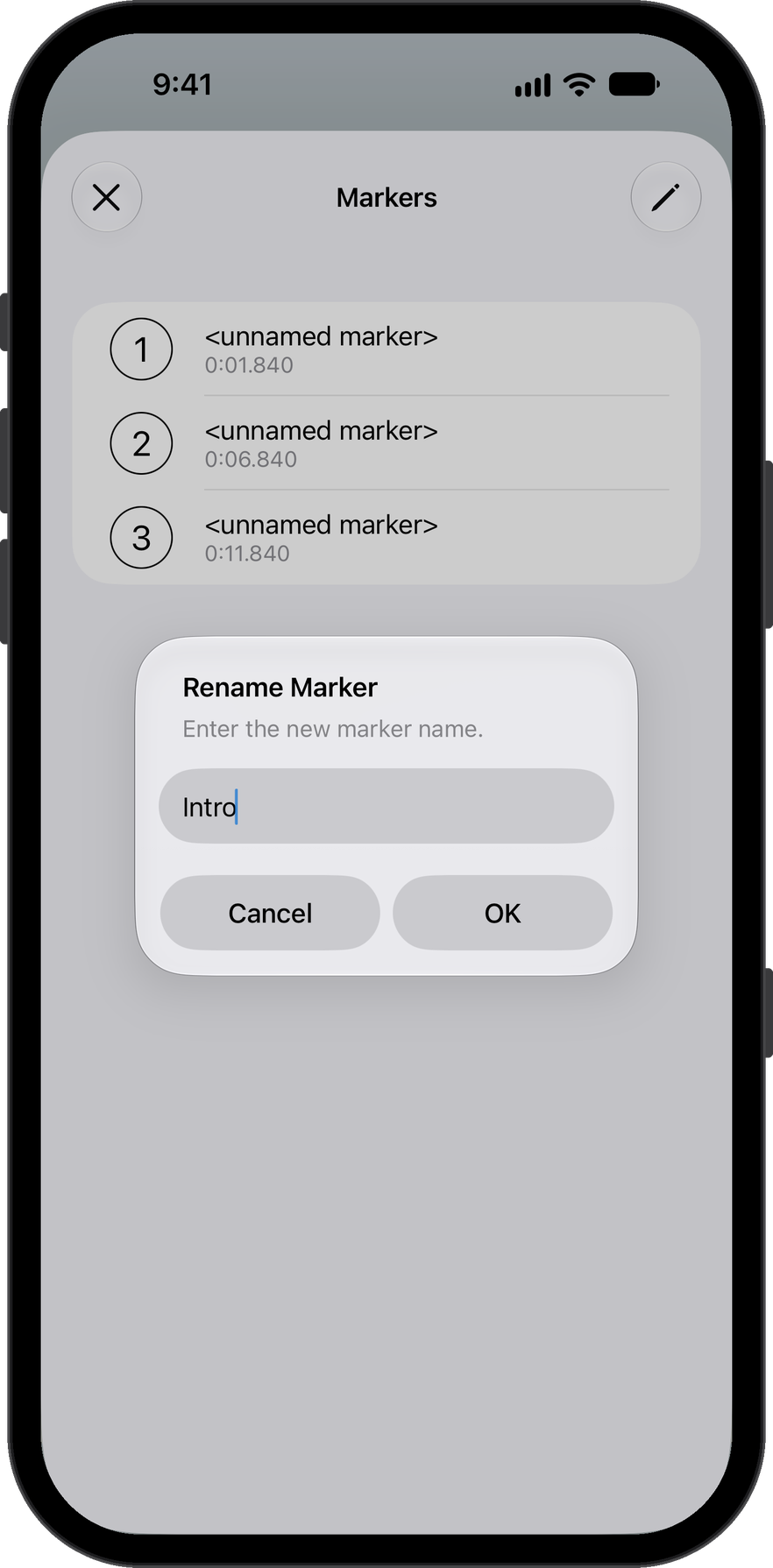
The edit button opens up more editing options.
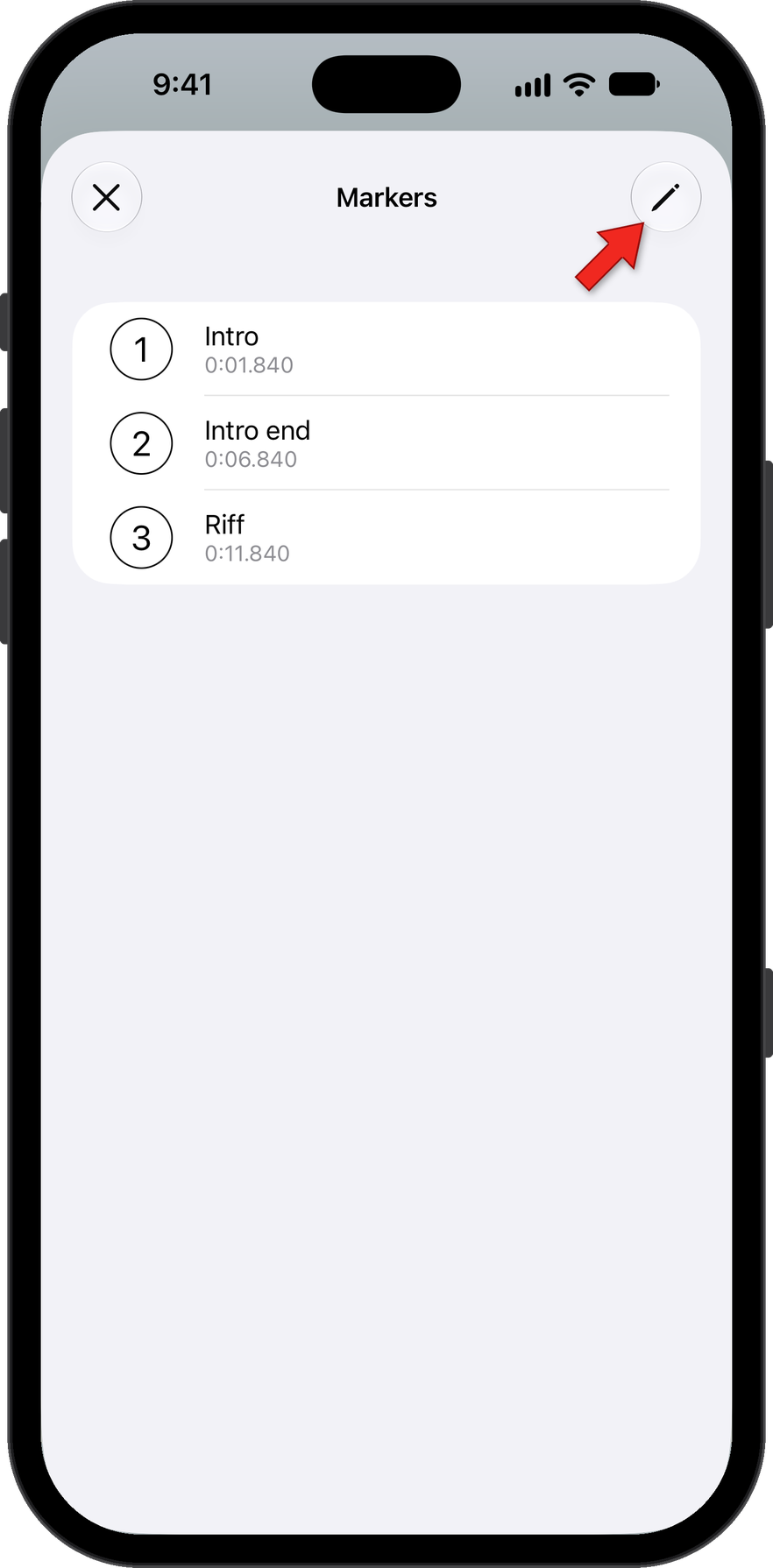
Tapping the minus button deletes the marker.
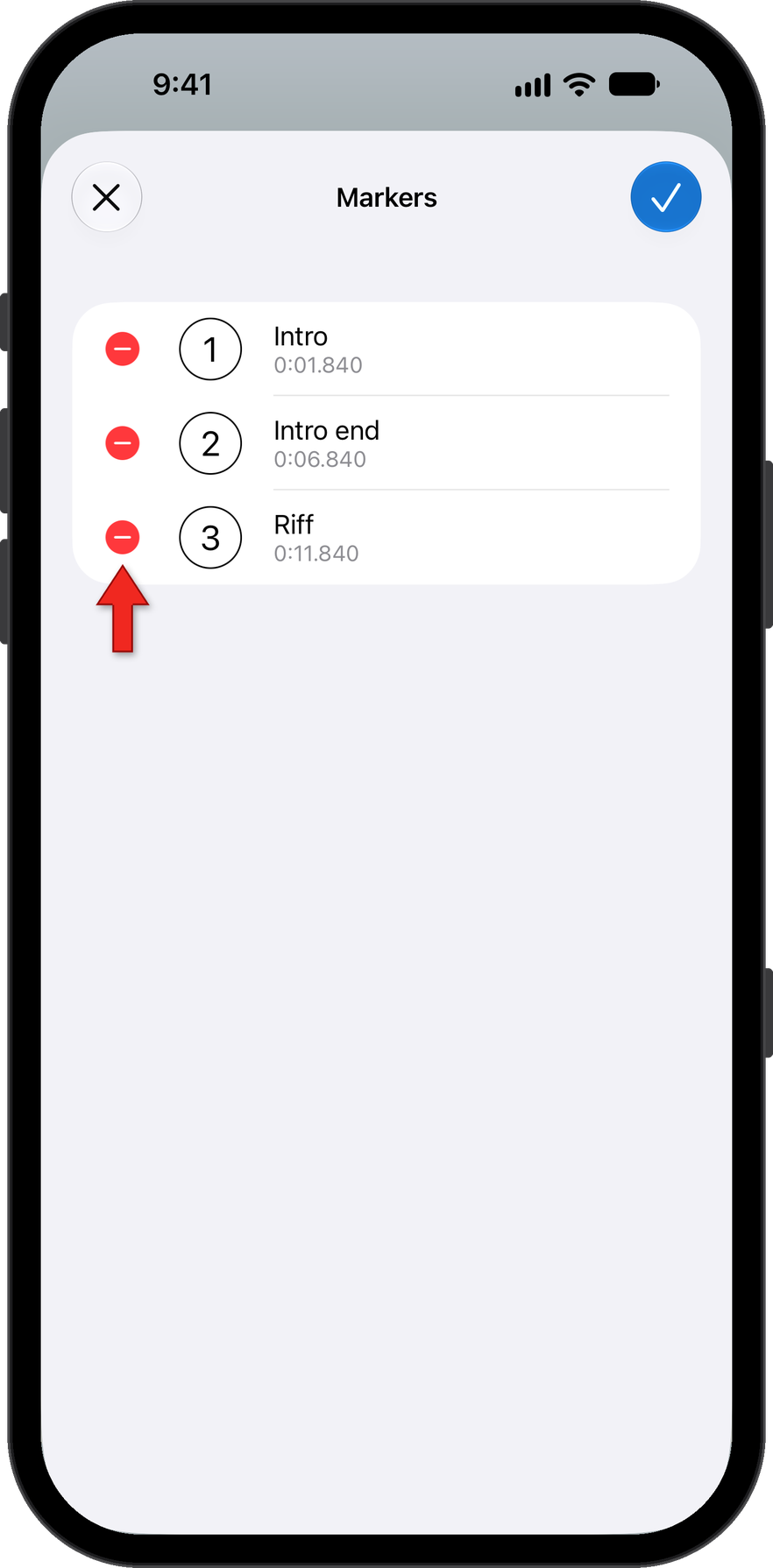
Long pressing on a marker brings up the same marker options menu you can access from pressing on a marker from the marker overview page. You can rename the marker or assign it to the A or B points.
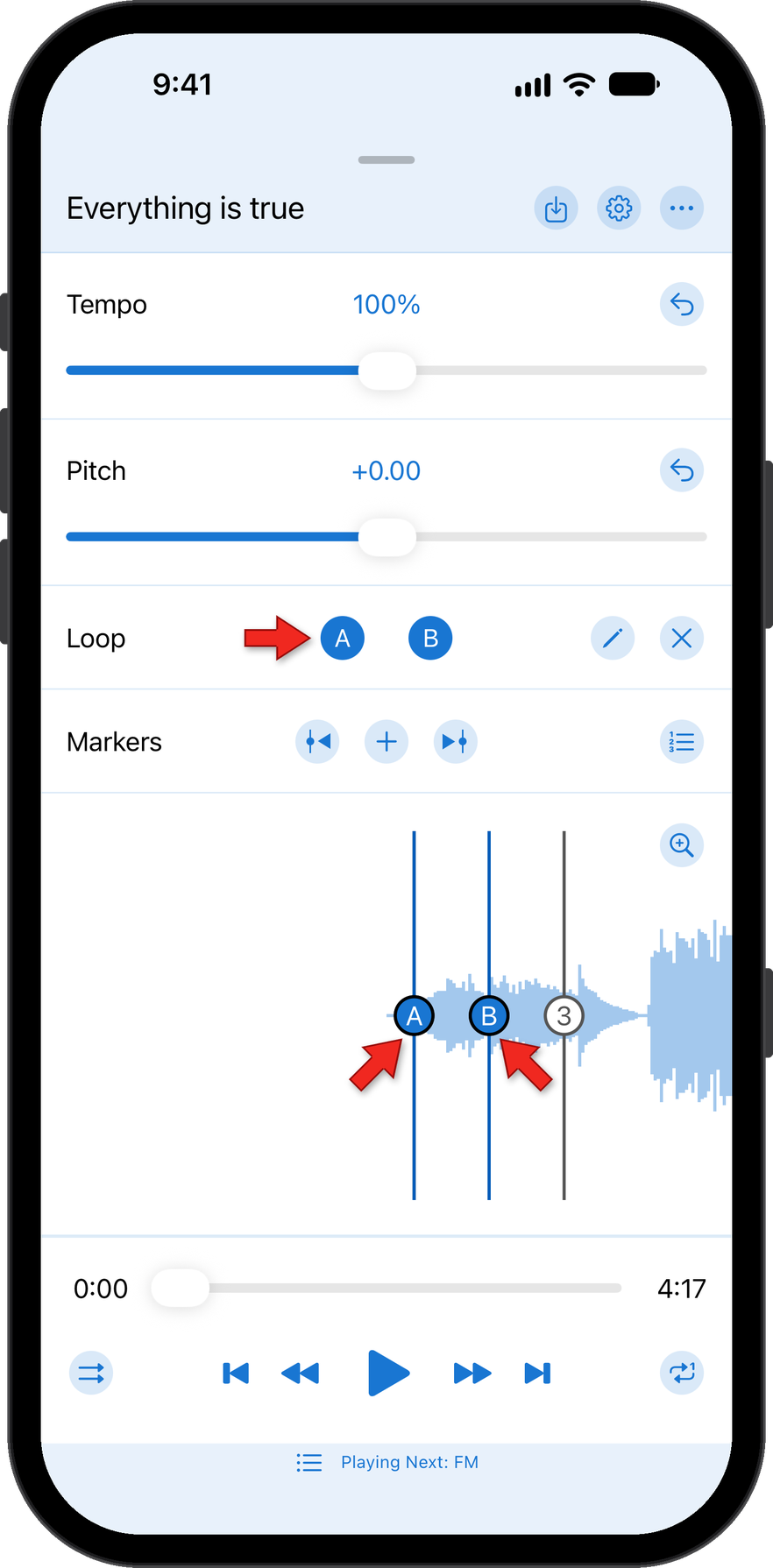
If you assign Markers to A or B points, you will see those points now named A or B and highlighted. You can delete the loop points from the loop section of the editor without affecting the underlying markers.
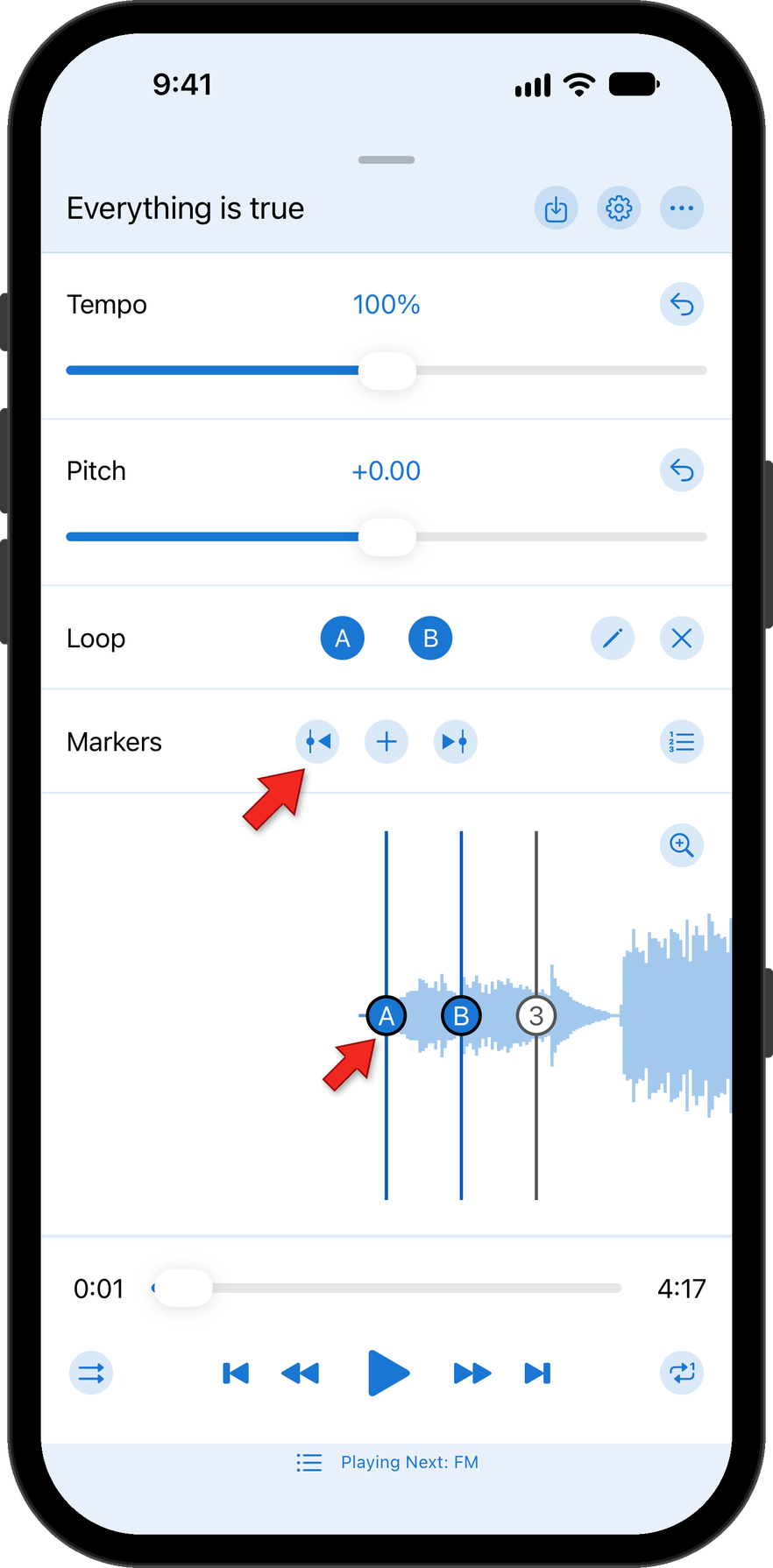
The arrow buttons to the left and right of the add button help you jump to the next and previous marker in the audio track.
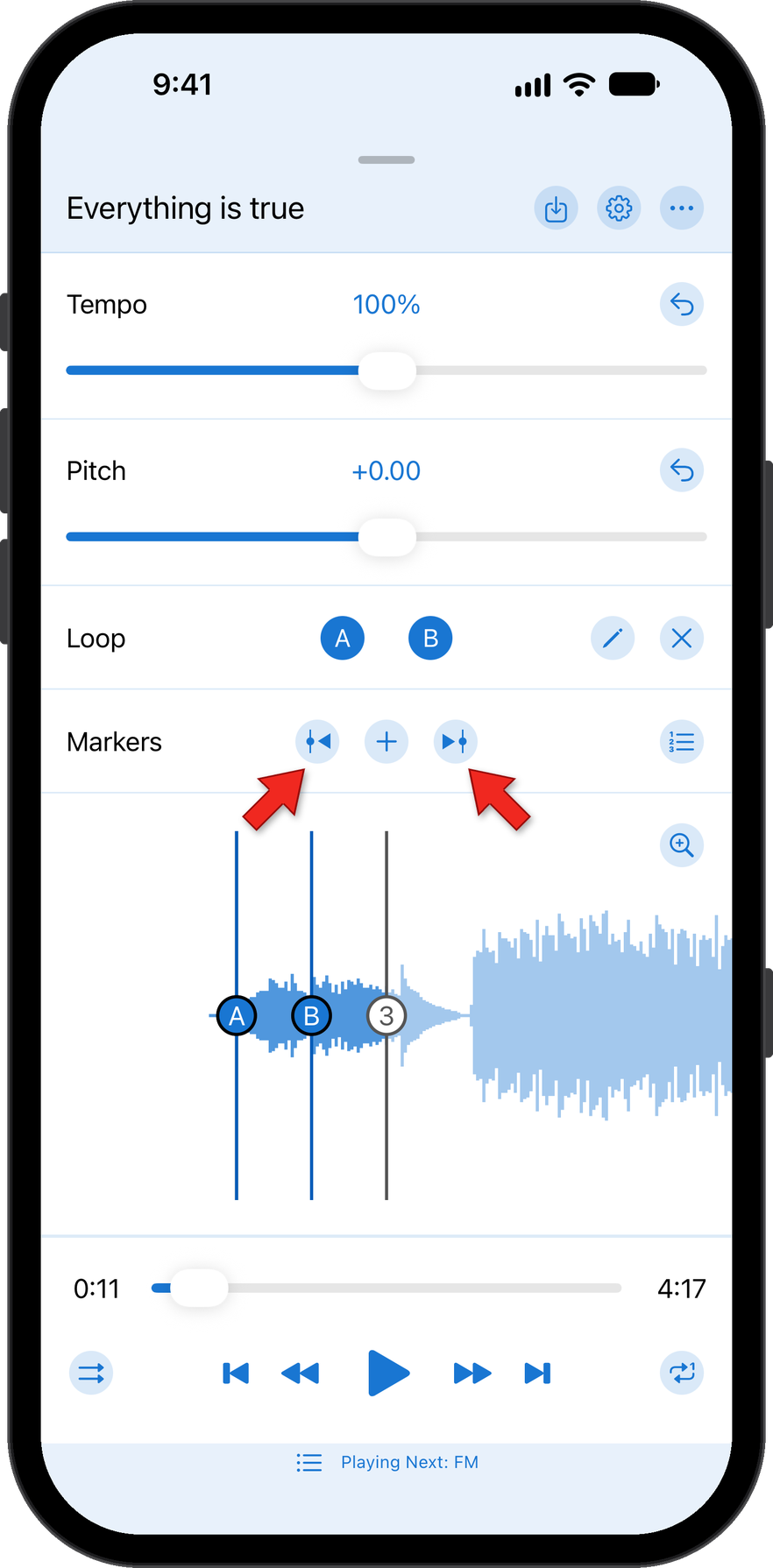
Tapping the previous arrow button moved the audio to the first marker set as the A loop point.
How did we do?
Trim an Audio Track
