Remove Files / Delete Imported Tracks
The tracks you import in the files section can be deleted one by one or in bulk. This article will show you how to remove tracks from the files section of Music Speed Changer iOS. Removing a Track fr…

The tracks you import in the files section can be deleted one by one or in bulk. This article will show you how to remove tracks from the files section of Music Speed Changer iOS.
Removing a Track from Files
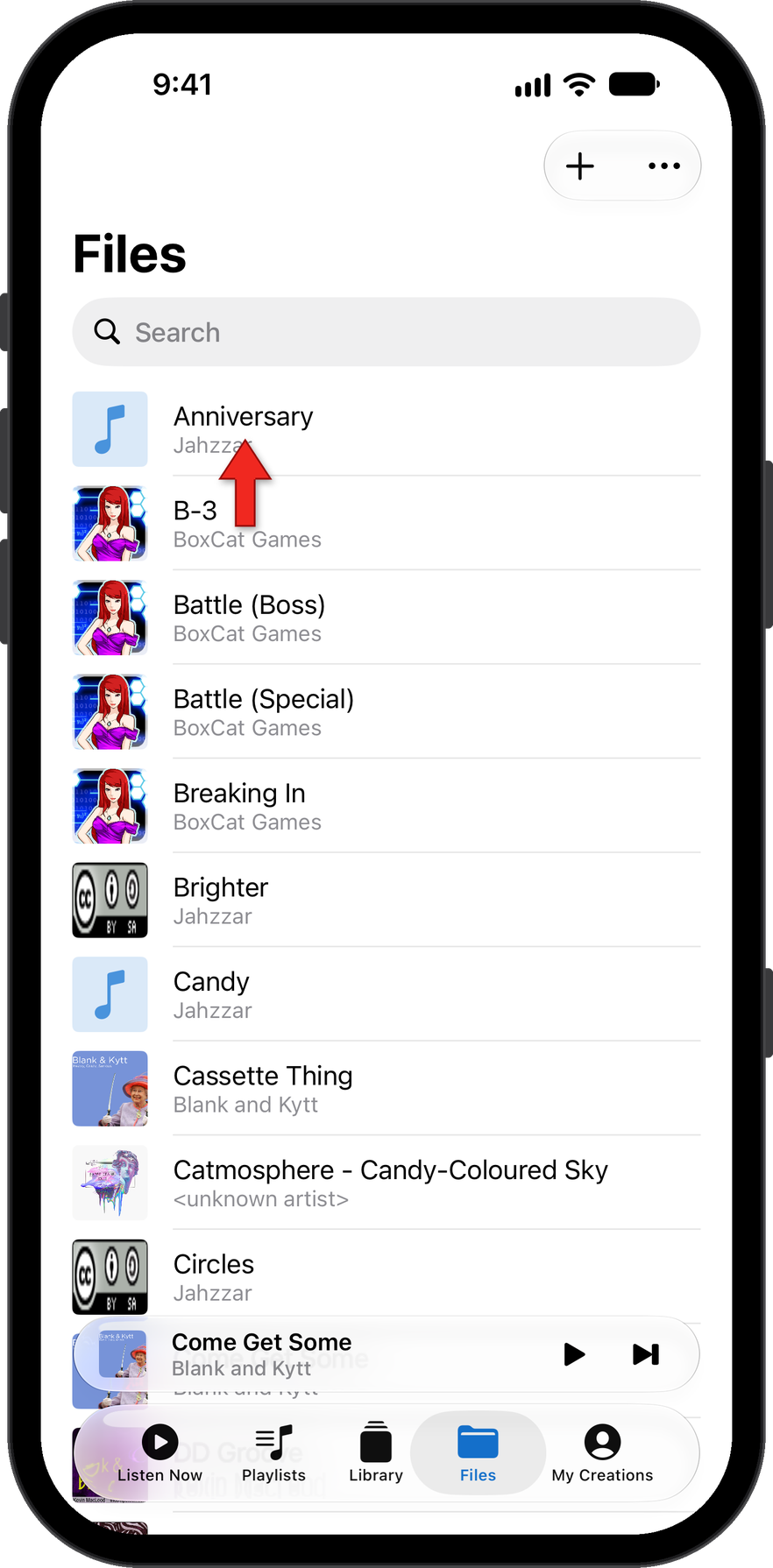
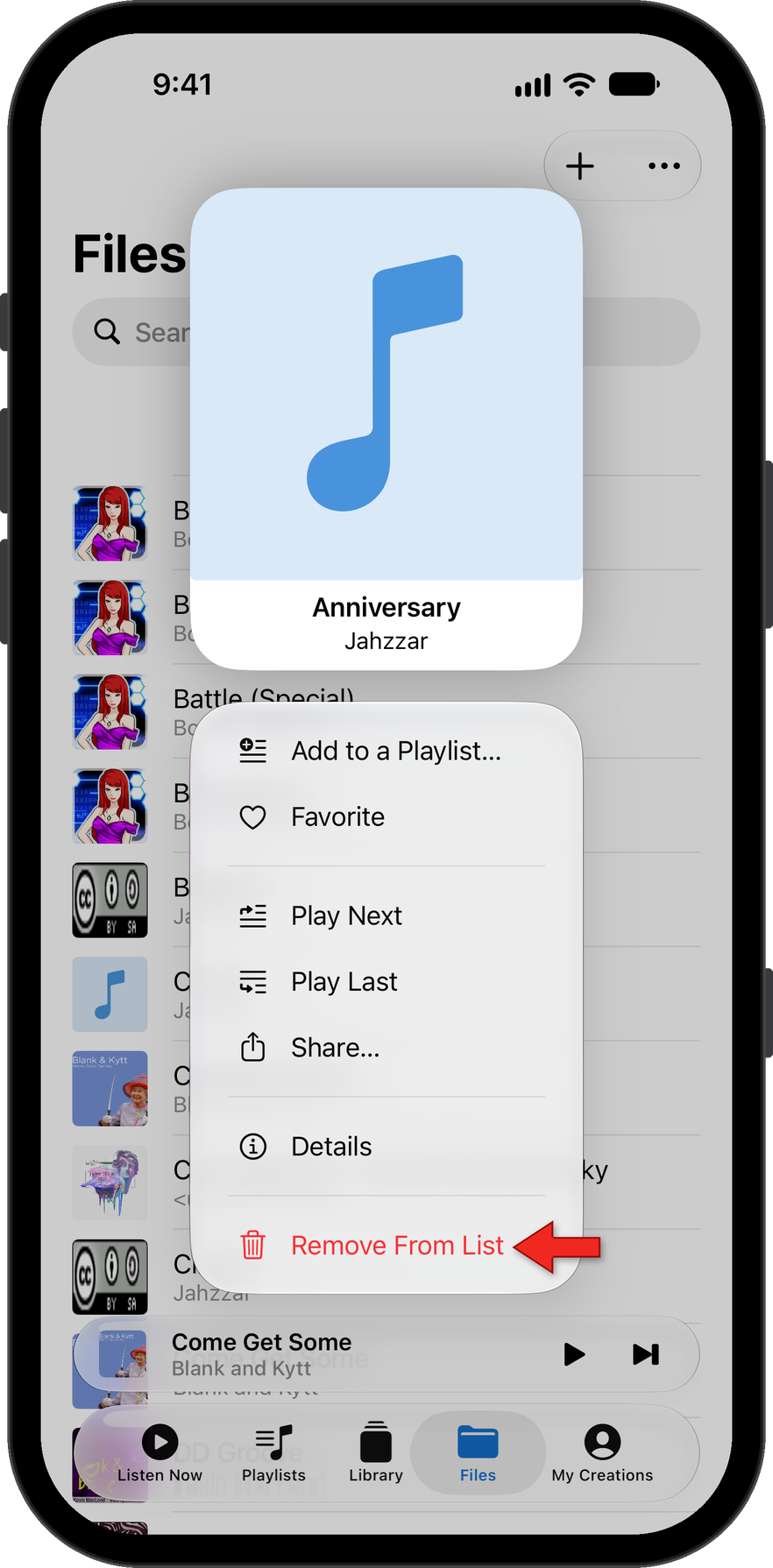
Tap on Files at the bottom of the app to go to the Files section to get started. Tap and hold down on (long press on) a track to bring up the track menu.
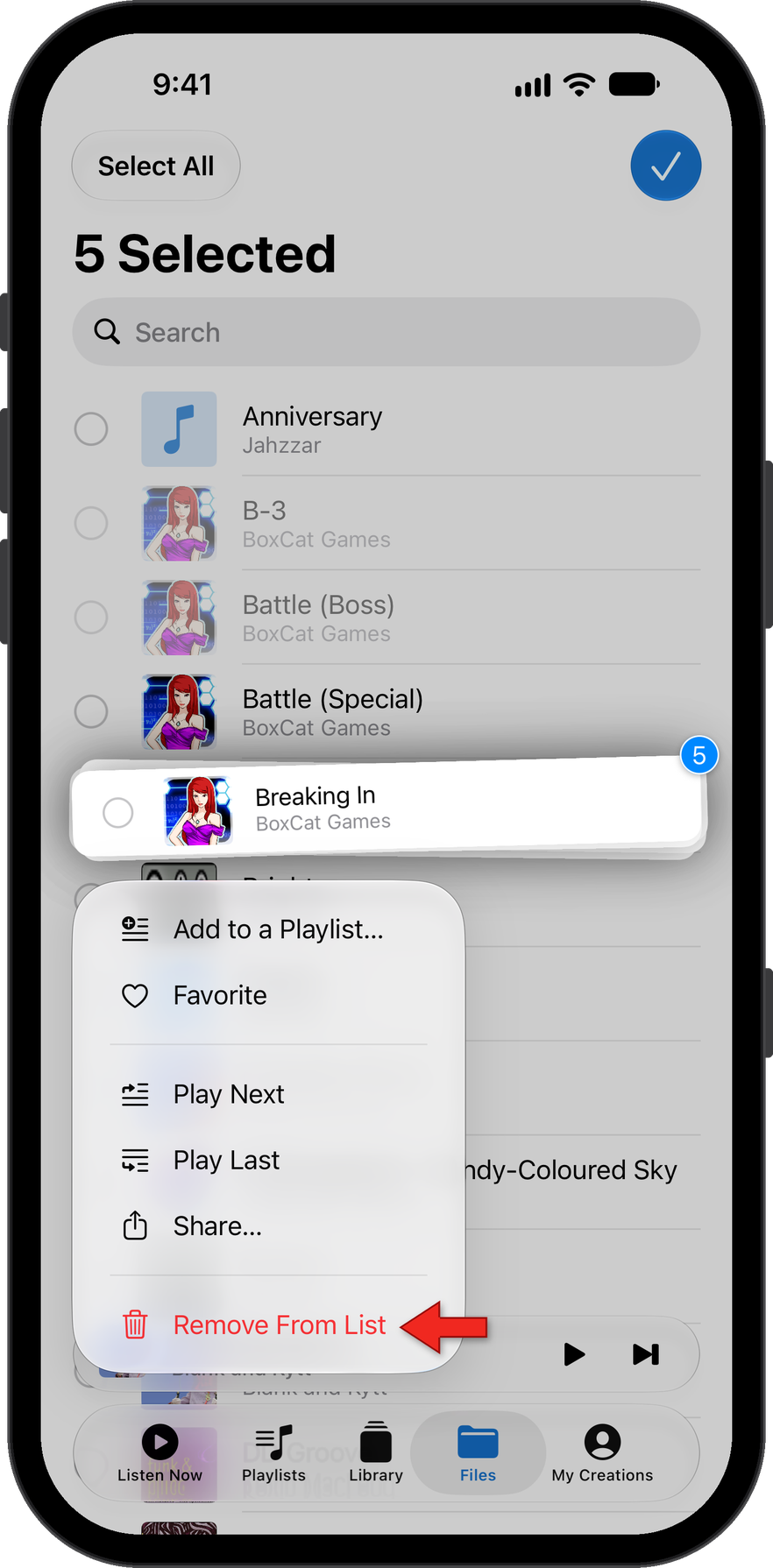
Remove from List will delete the imported file from the Files section and remove the track from the app.
Removing Multiple Tracks from Files
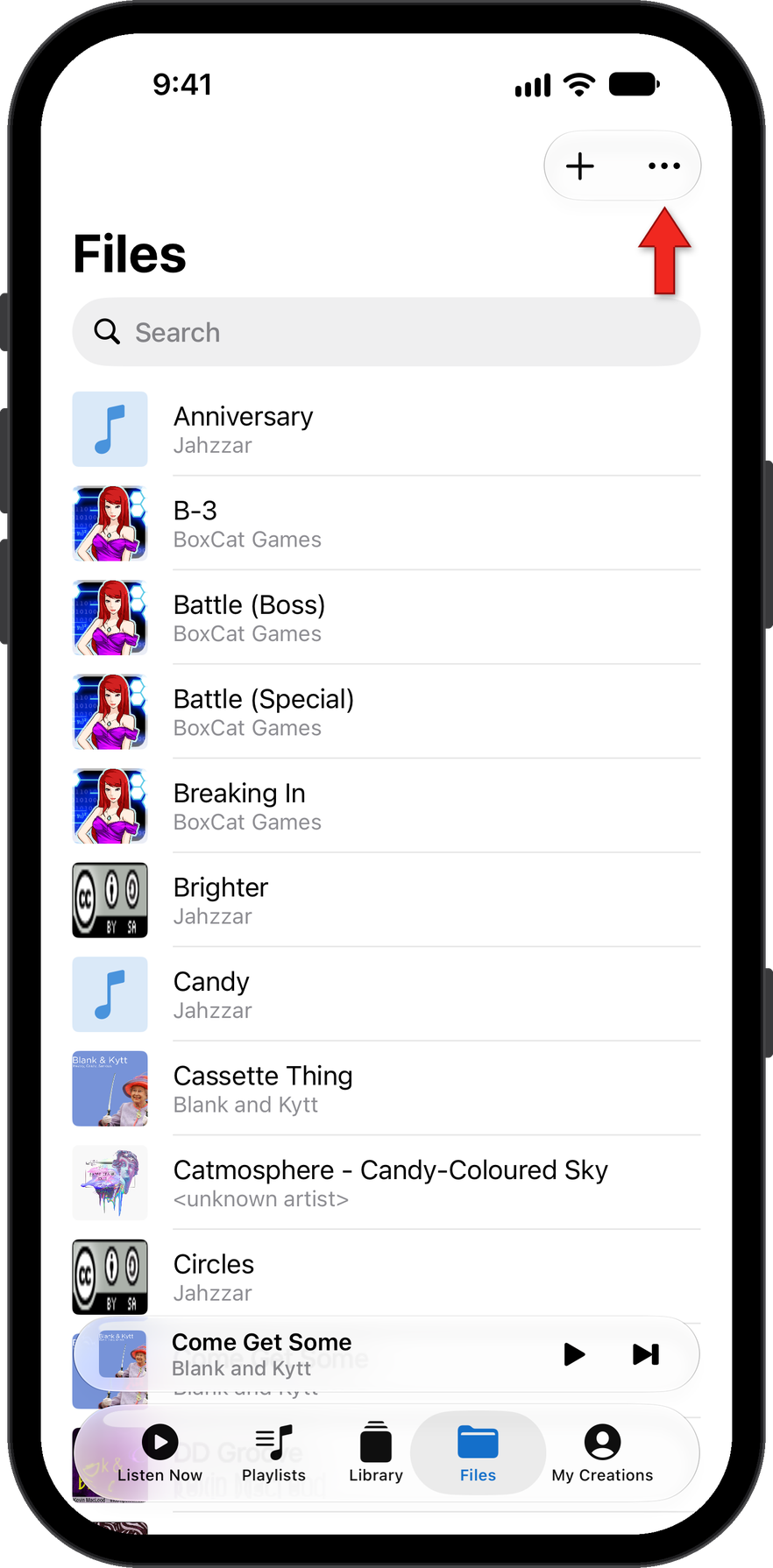
You can also remove multiple files at once from the app. To do so, tap on the three dots at the top of the Files section of the app.
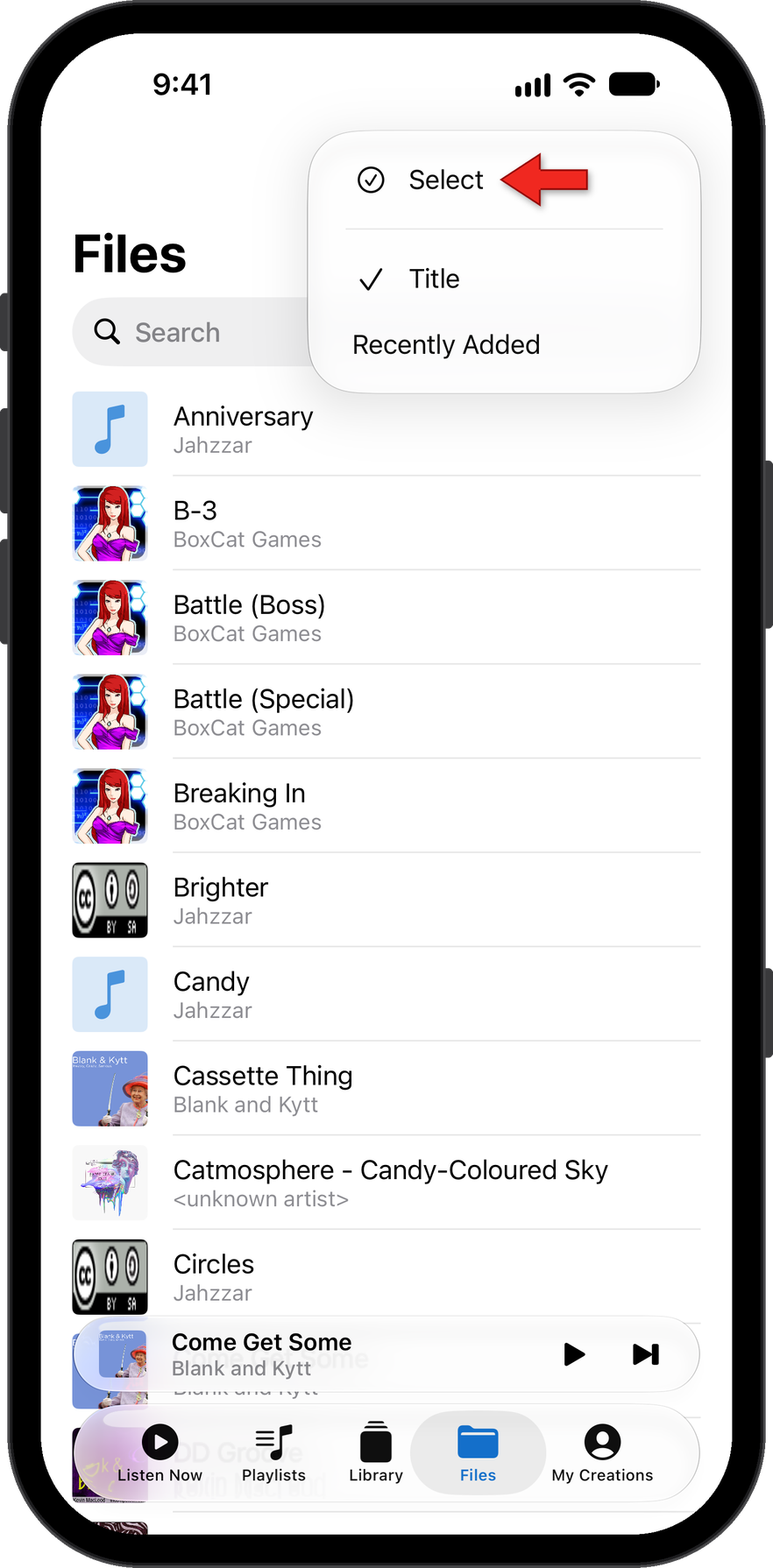
In the dropdown menu, choose Select.
Tap on all the tracks you wish to delete. Once you have finished selecting the files you want to remove, long press on any one of the selected titles.
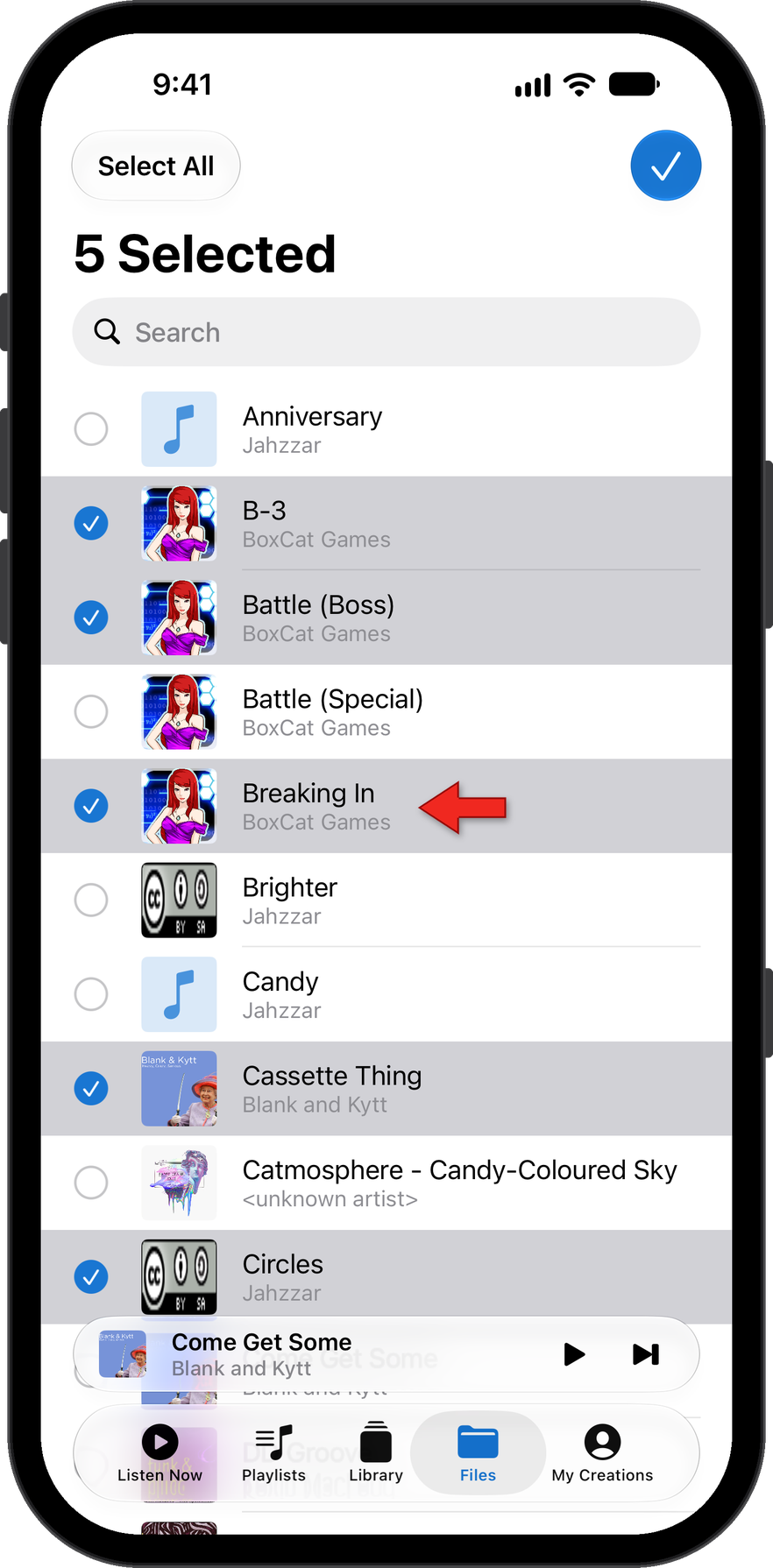
This will bring up an option menu. Select Remove from List to delete the imported files from the app.
How did we do?
Importing Files from Device and Cloud Providers
