Fixed BPM Playlist with Saved Tracks
This requires the iTunes (not the Apple streaming media as it doesn't come with editing rights) version of the tracks, OR imported Files. We had a marathon runner ask for a tutorial on how to create…

This requires the iTunes (not the Apple streaming media as it doesn't come with editing rights) version of the tracks, OR imported Files.
We had a marathon runner ask for a tutorial on how to create three playlists with 191, 192 and 193 BPM versions of a set of tracks, so this is the tutorial on how to save a set of tracks at 191, 192 and 193 BPM and add each set version to one of three different playlists:
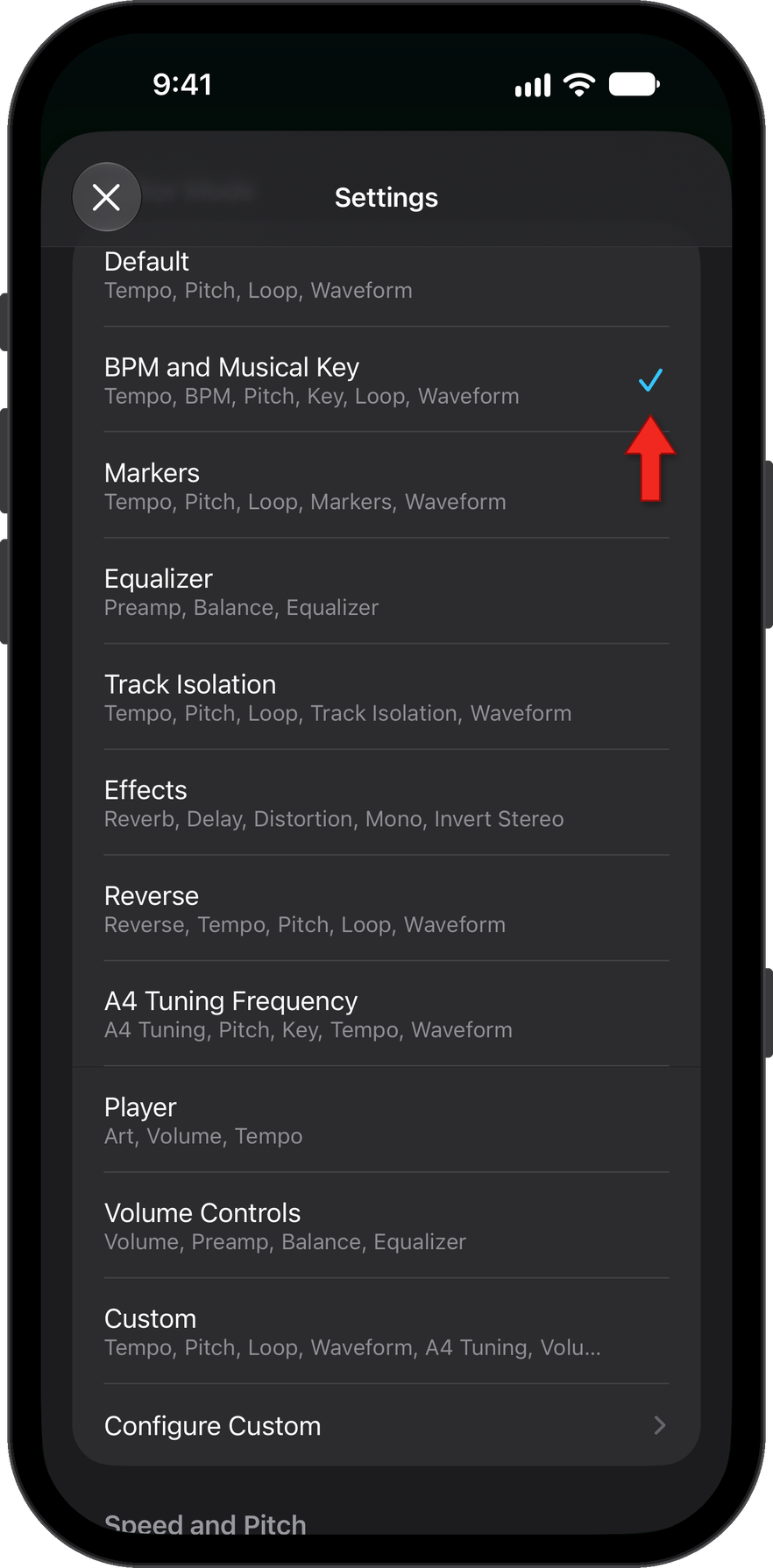
1. Add the BPM component to the editor in Settings.
More about adding BPM detection.
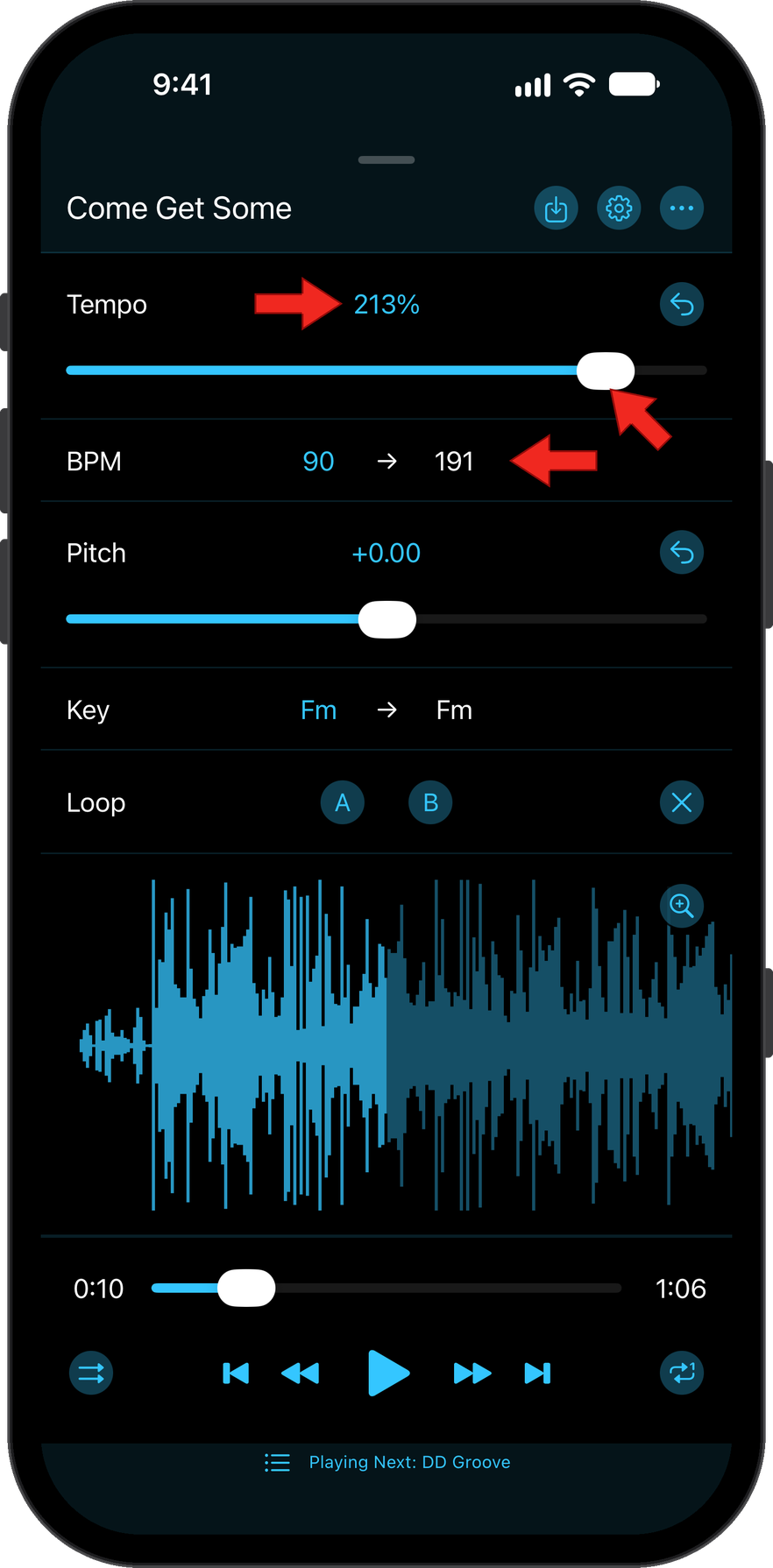
2. Open a track and use the Tempo controls to adjust the right-side BPM value to 191.
More about adjusting the BPM.
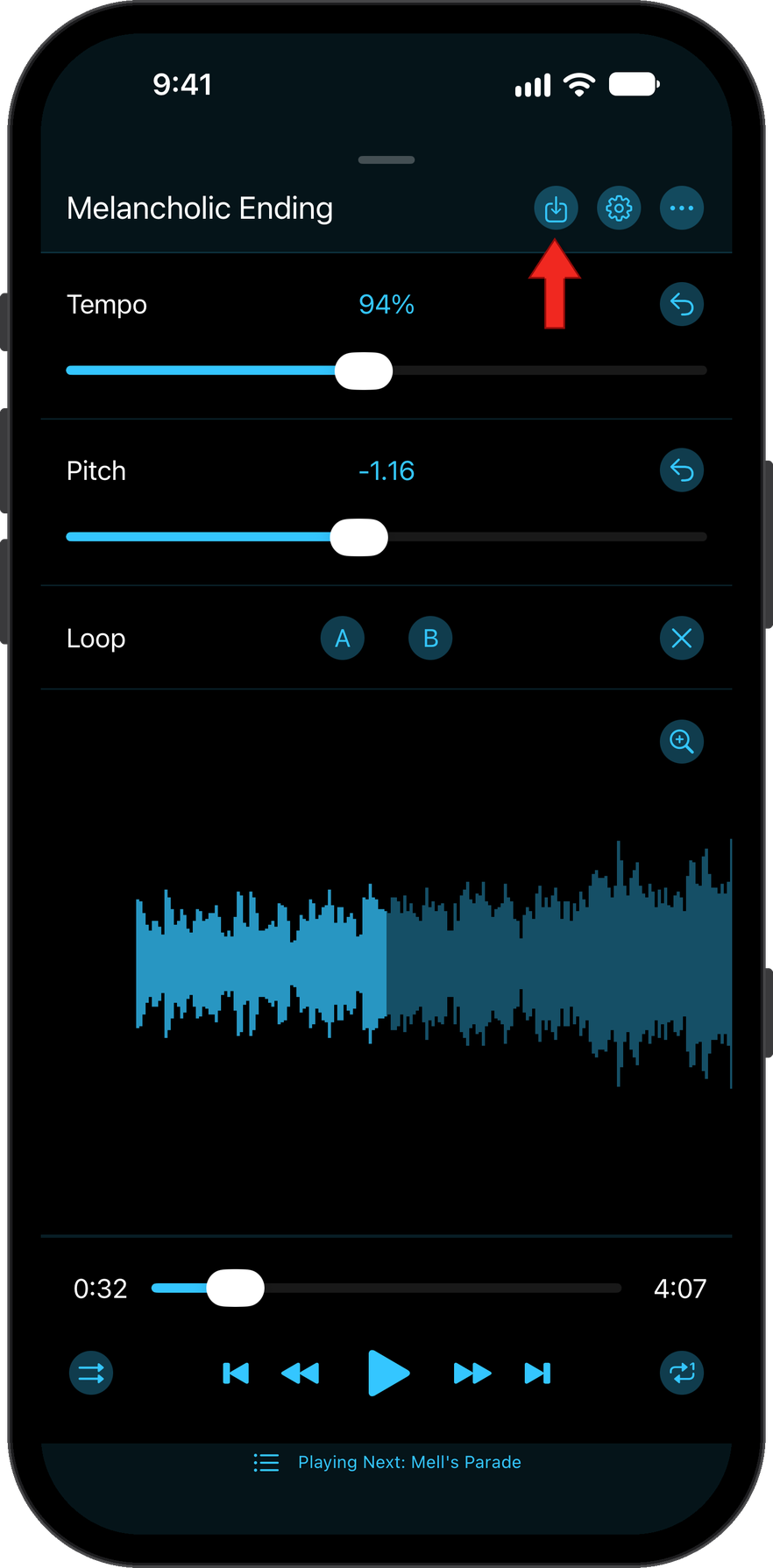
3. Save the track by tapping the save button (box with down arrow) at the top of the editor. Add 191 in the New Track Title so you know later which is which.
More about saving the altered track.
4. Change the tempo to 192 BPM and save with 192 in the title.
5. Change the tempo to 193 BPM and save with 193 in the title.
6. Repeat steps 2-5 above with each track.
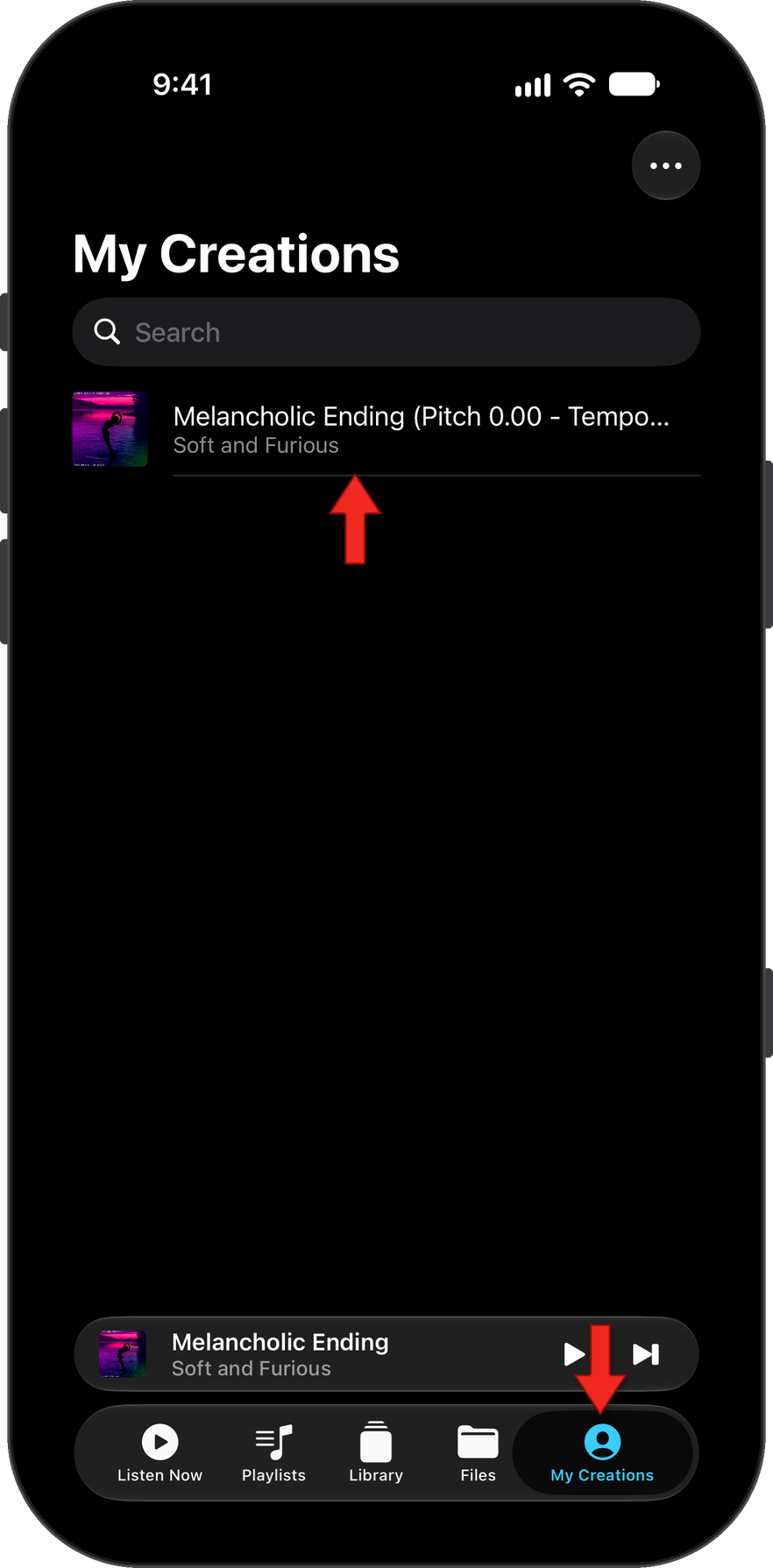
7. Once you have saved all tracks at each BPM, open My Creations (last tab of the navigation bar at the bottom of the main overview).
More about the My Creations section.
8. Select all 191 BPM tracks. To do so, tap the three dots button at the top right. Tap Select. Tap on and select all 191 BPM tracks.
More about selecting tracks and adding them to a playlist.
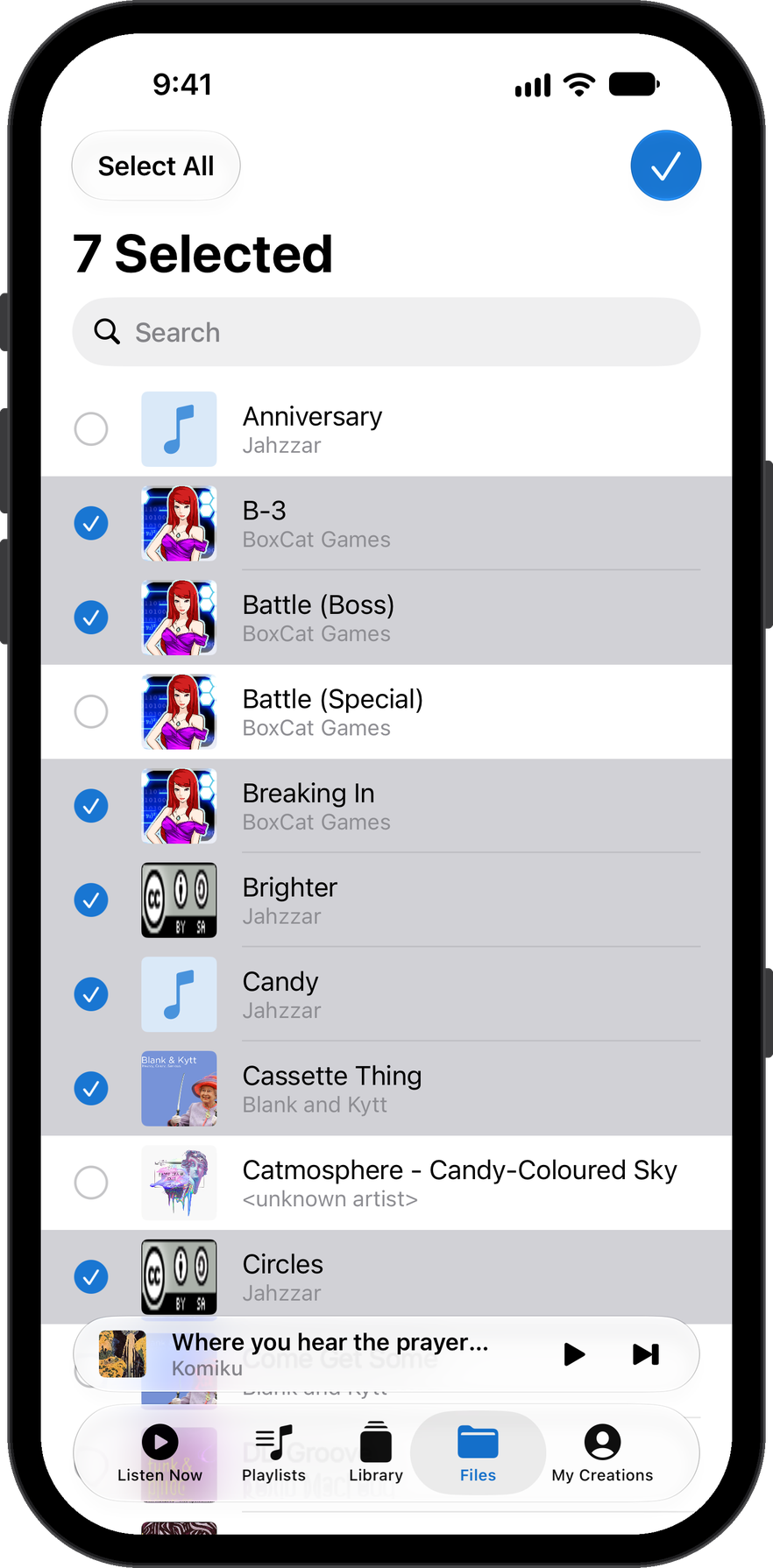
9. Long press on any selected track. Tap Add to Playlist...
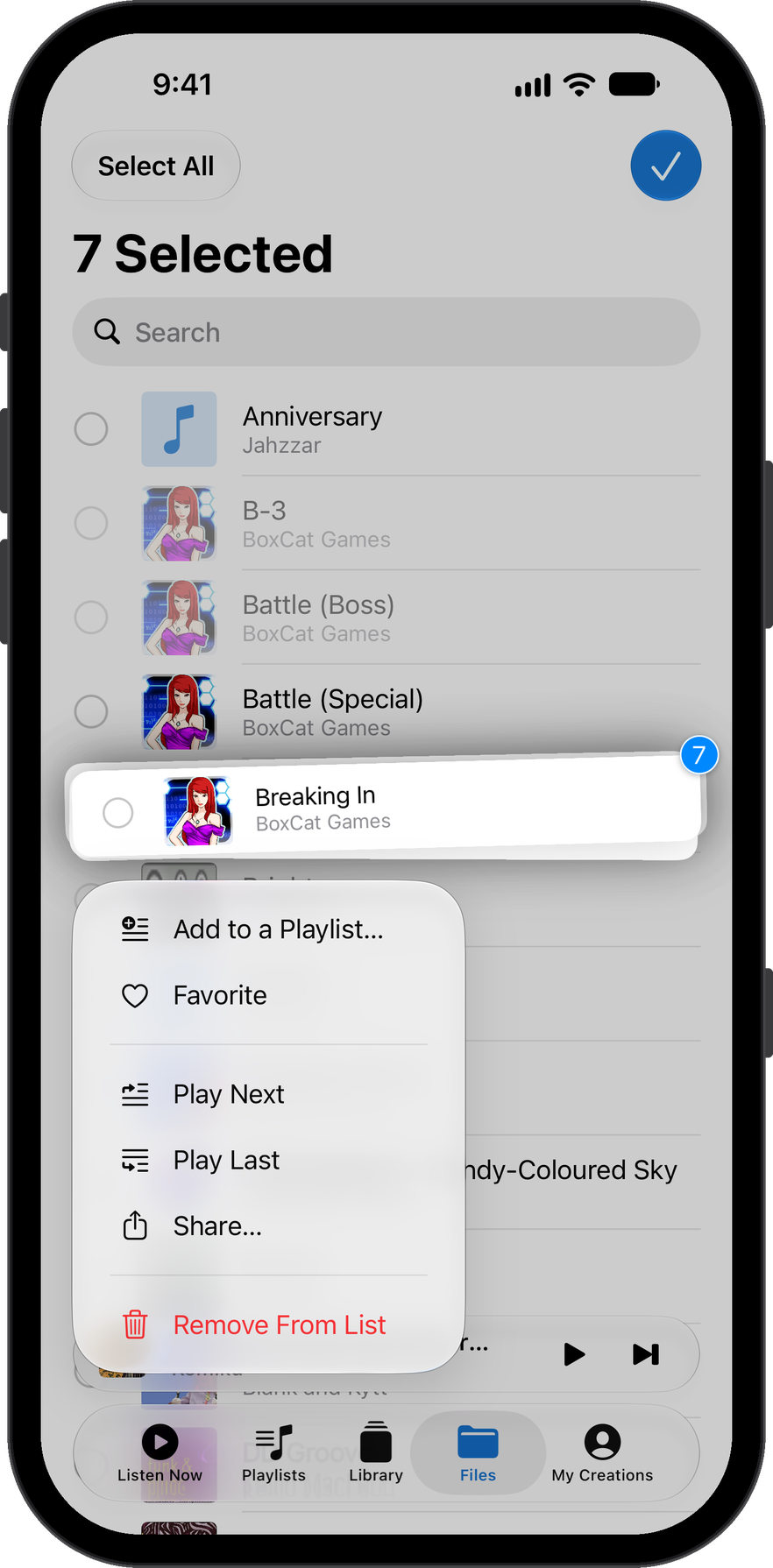
10. If you have a playlist you want to use, tap it. Else, tap New Playlist... and name the playlist whatever you like (Marathon 191 BPM, etc.), then tap the new list to add to it. It should give you a successfully added confirmation and you will see the track count higher than 0.
11. Repeat steps 8-10 for 192 BPM.
12. Repeat steps 8-10 for 193 BPM.
That's it. You should now have three playlists in the playlist section with the respective BPM tracks.
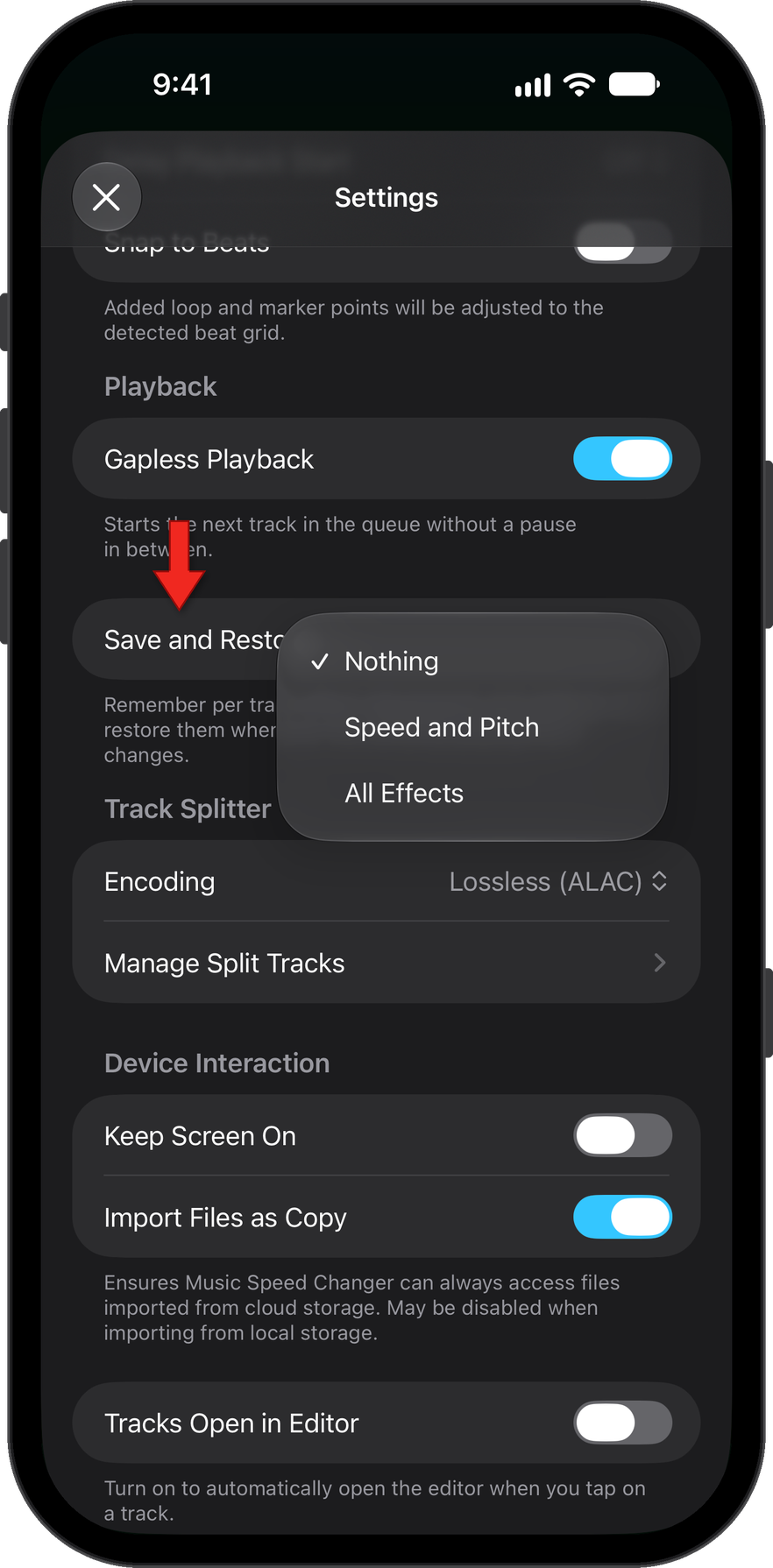
Note: When you want to use the playlists, make sure the editor is reset to default values and "Save and Restore" is "Nothing" in settings; otherwise, it will apply the current editor or remembered settings and throw off the saved adjustments.
More about the Save and Restore setting.
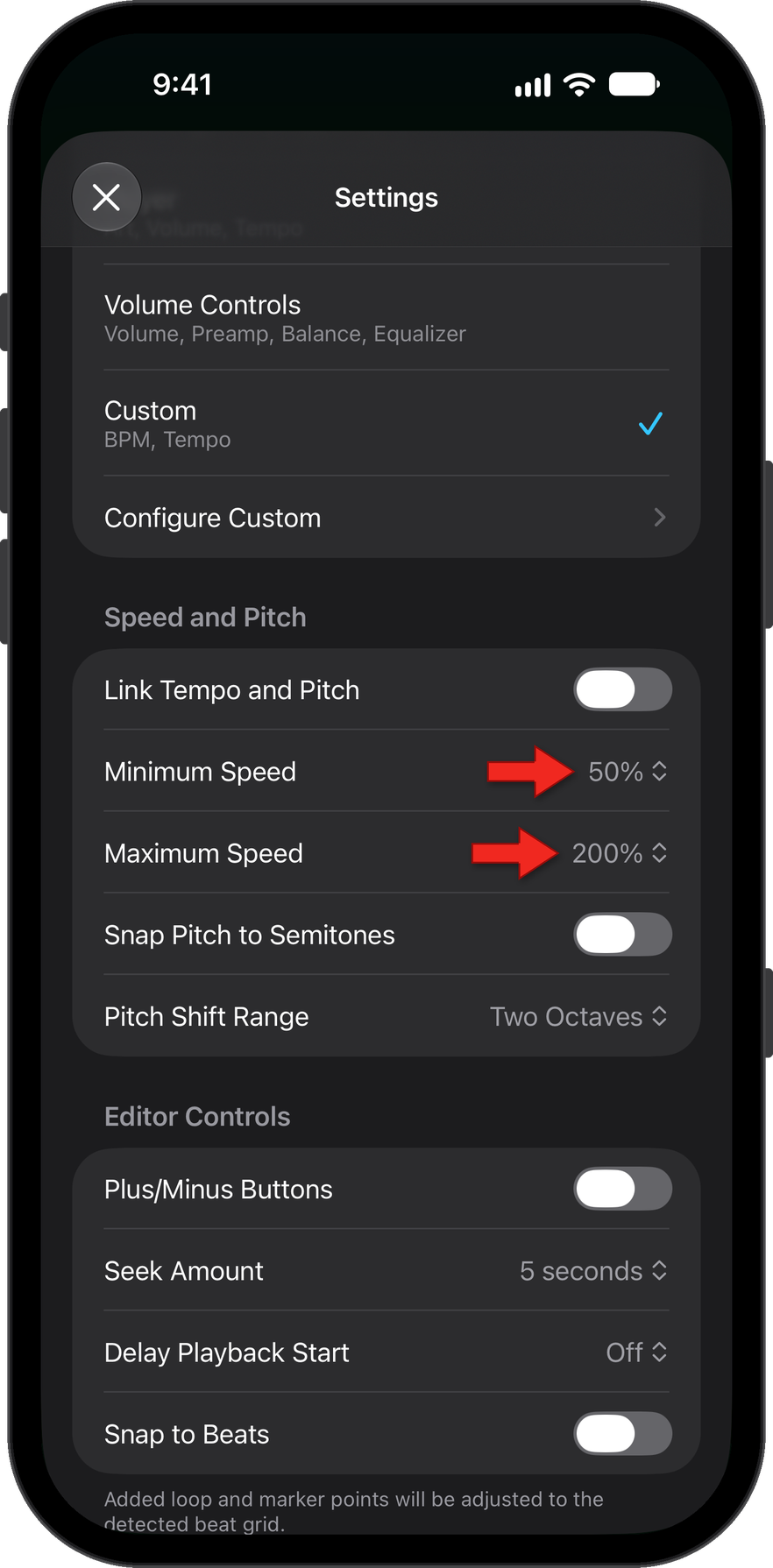
Tip: Narrow the Tempo range in Settings to make it easier to set the BPM precisely:
How did we do?
Creating Playlists and Adding Tracks
