Backing Up and Restoring Playlists, Markers and Settings
Back up and restore your playlists, markers, presets and settings in Music Speed Changer for iPhone and iPad, or move them to a new device.

Music Speed Changer keeps your playlists, markers, presets, key and BPM, play counts and settings when you move to a new iPhone or iPad. You can also save them to a backup file, to keep it safe or to move everything to another device yourself. Your music files aren't part of a backup file; copy them to the other device separately.
Backup and Restore needs version 1.22.0 or later of the app.
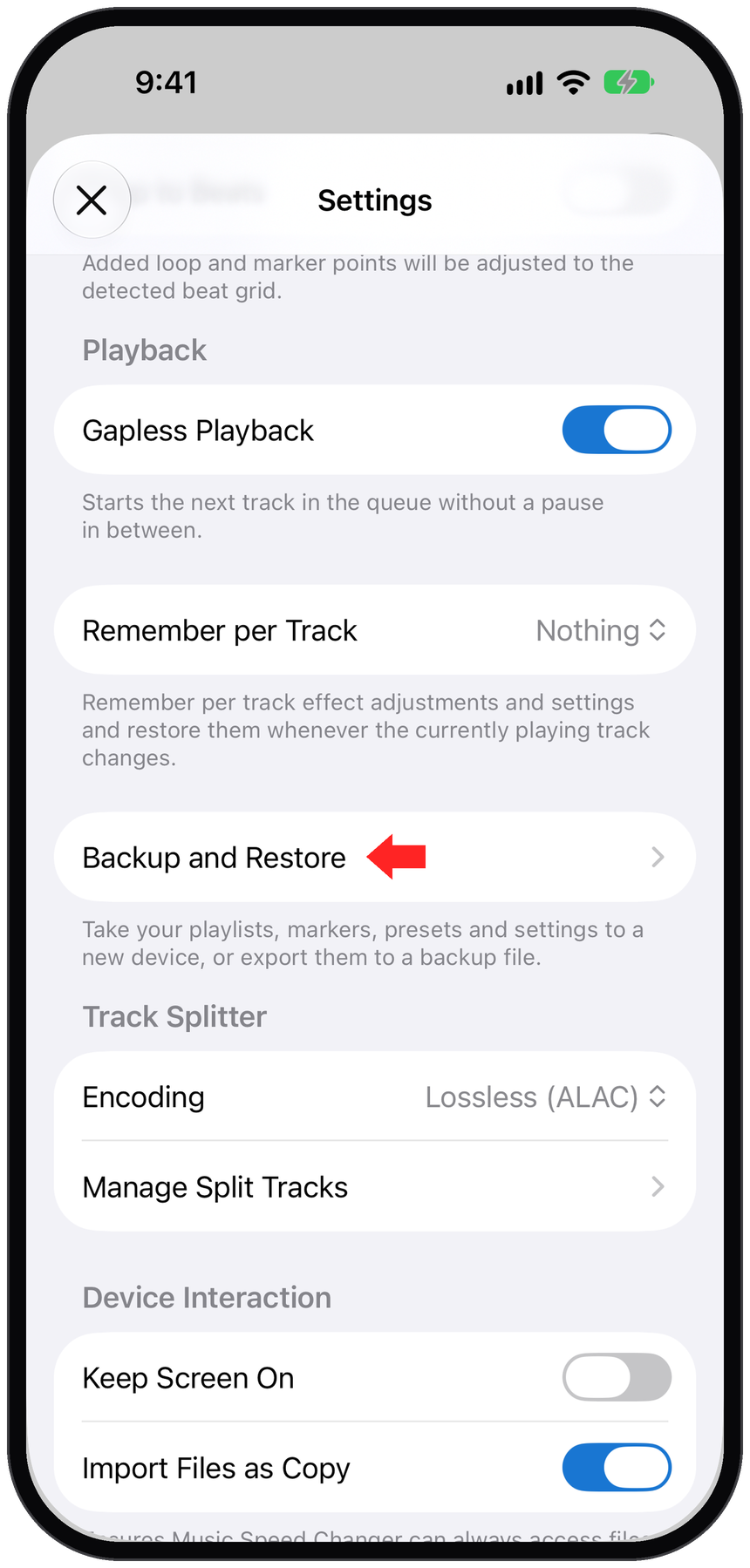
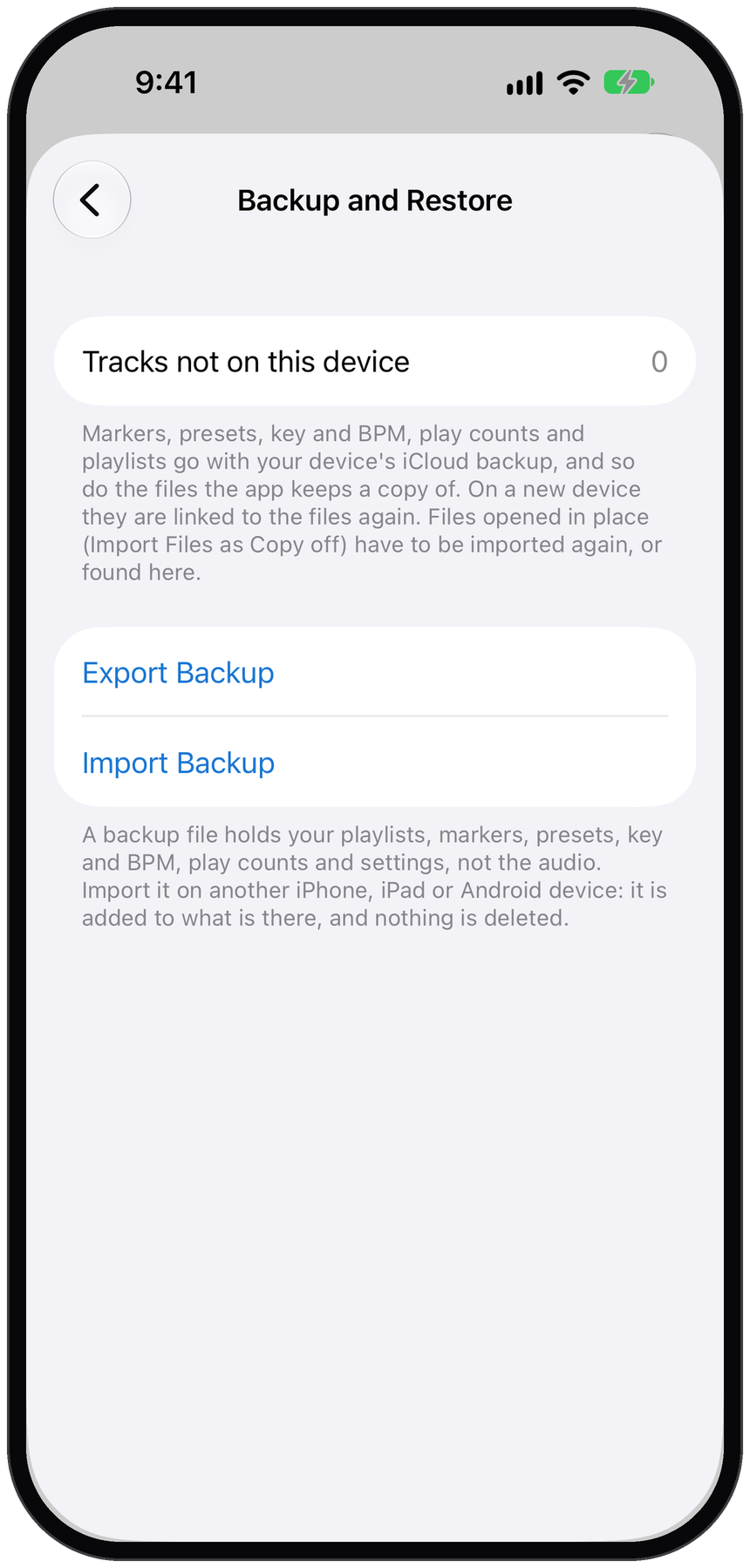
To open Settings, tap the ••• button at the top of the "Listen Now" tab and choose Settings, or tap the gear button at the top of the Editor. In Settings, scroll down and tap Backup and Restore.
Moving to a New iPhone or iPad
There is nothing to turn on in the app. Your markers, presets, key and BPM, play counts and playlists are part of your device's iCloud backup, and so are the files the app keeps a copy of. When you set up a new device from that backup and open Music Speed Changer, everything is linked to your tracks again.
Songs from your Apple Music library are linked again when they are in the Music library on the new device.
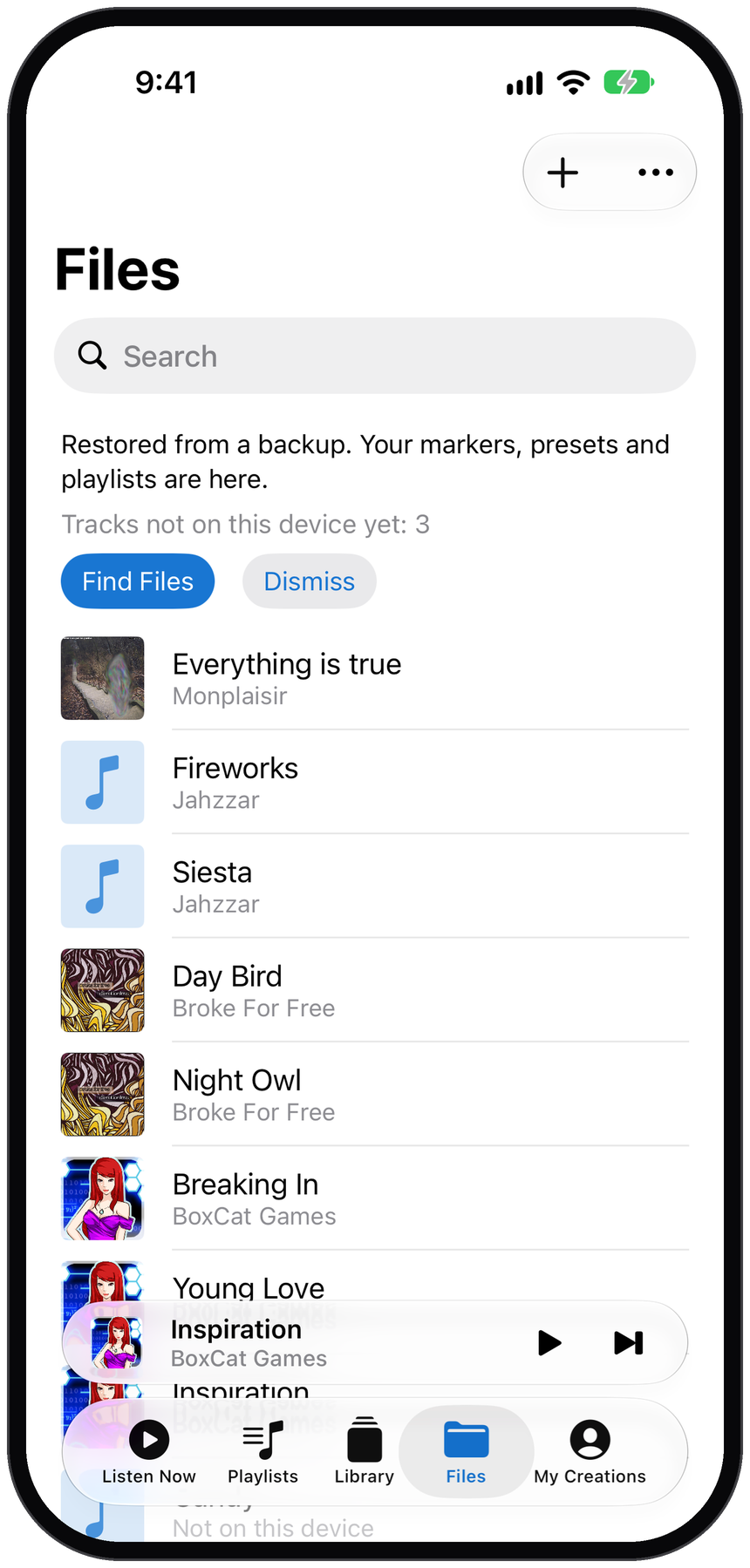
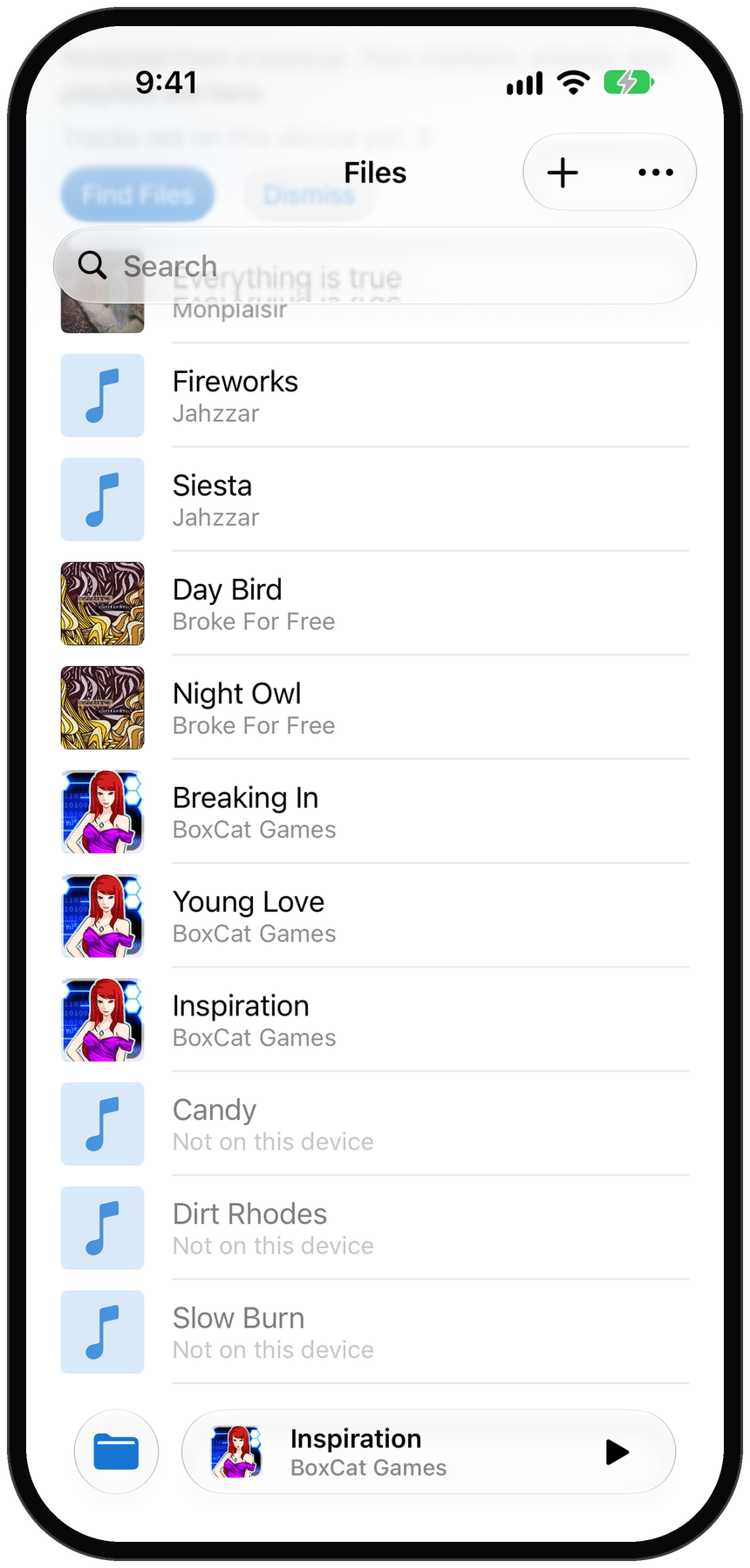
Files that were opened in place rather than copied into the app (Import Files as Copy turned off in Settings) don't travel with the backup. They stay in your lists, marked "Not on this device", until you import them again or find them as described under Missing Tracks below.
If some tracks haven't been found, a message at the top of the Files section shows how many, with a Find Files button.
Saving a Backup File
- Tap Export Backup.
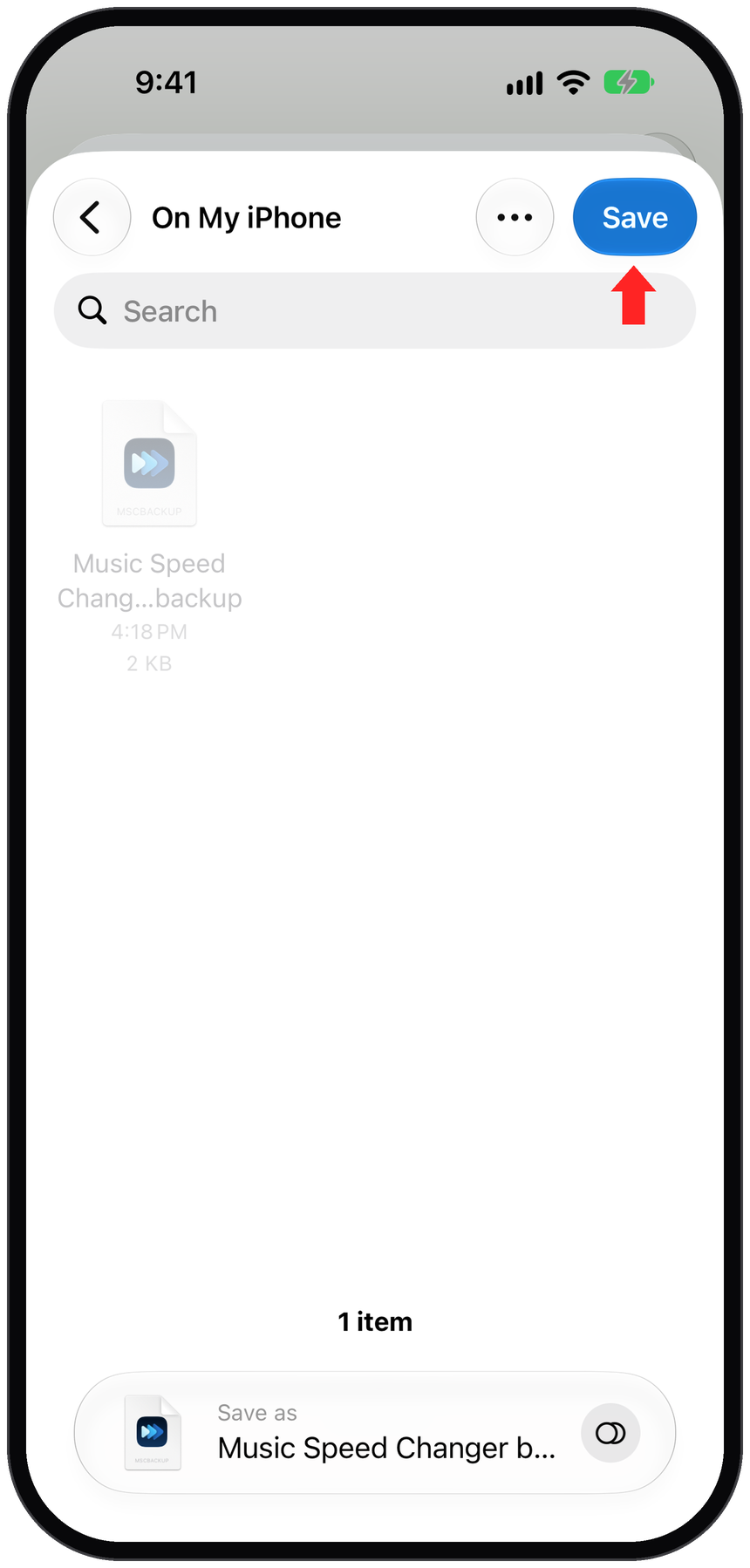
- Choose where to save it, such as iCloud Drive or On My iPhone, and tap Save. The file is named "Music Speed Changer backup" followed by the date. The app confirms with "Backup Saved".
A backup file holds your playlists, markers, presets, key and BPM, play counts and settings. It doesn't hold the audio.
Restoring from a Backup File
- Get the backup file onto the device, for example through iCloud Drive, AirDrop or email, and install Music Speed Changer.
- Open Backup and Restore, tap Import Backup and choose the file. You can also tap the backup file in the Files app, or share it to Music Speed Changer.
- The app shows which device the backup was made on, when, and how many playlists, markers and presets it contains. Tap Import.
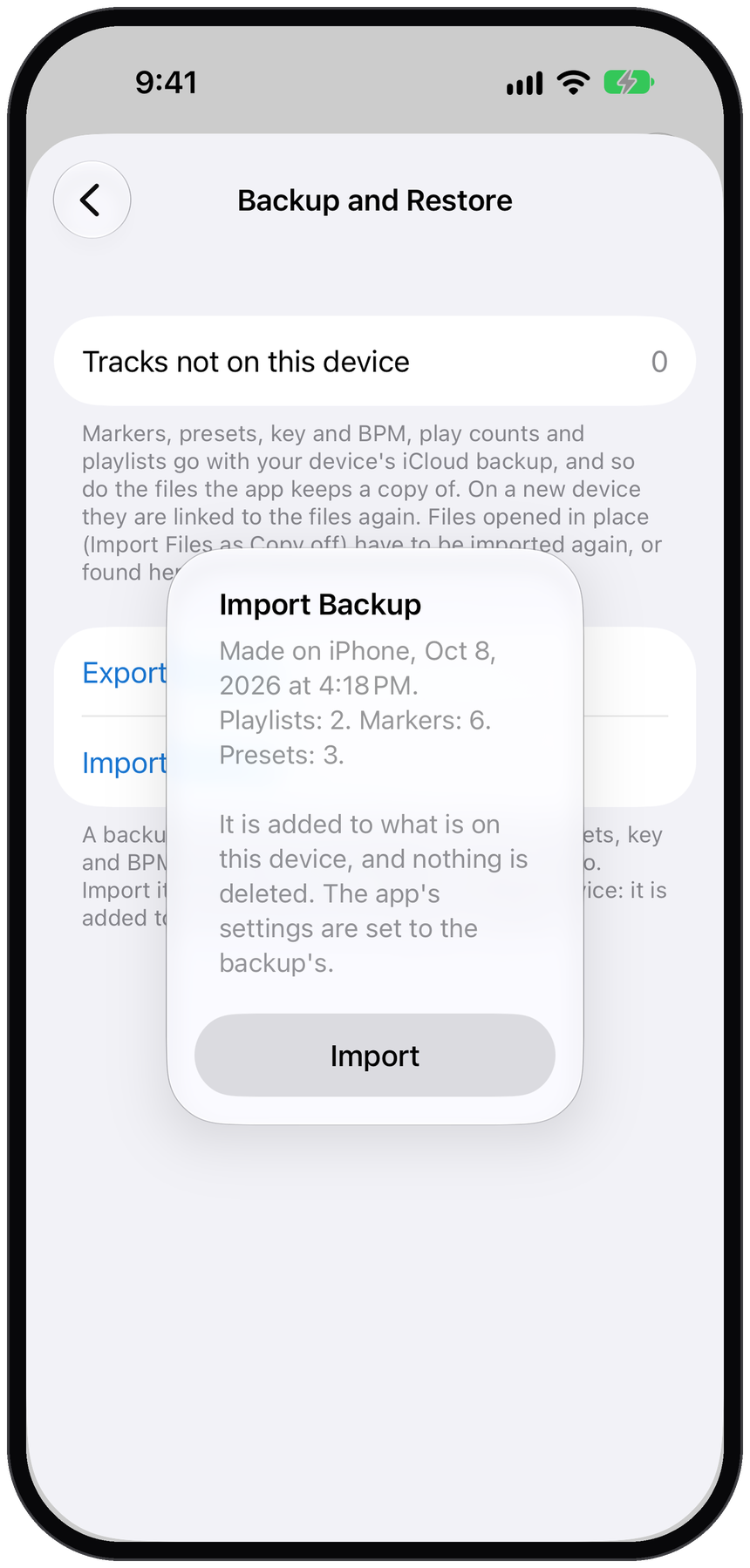
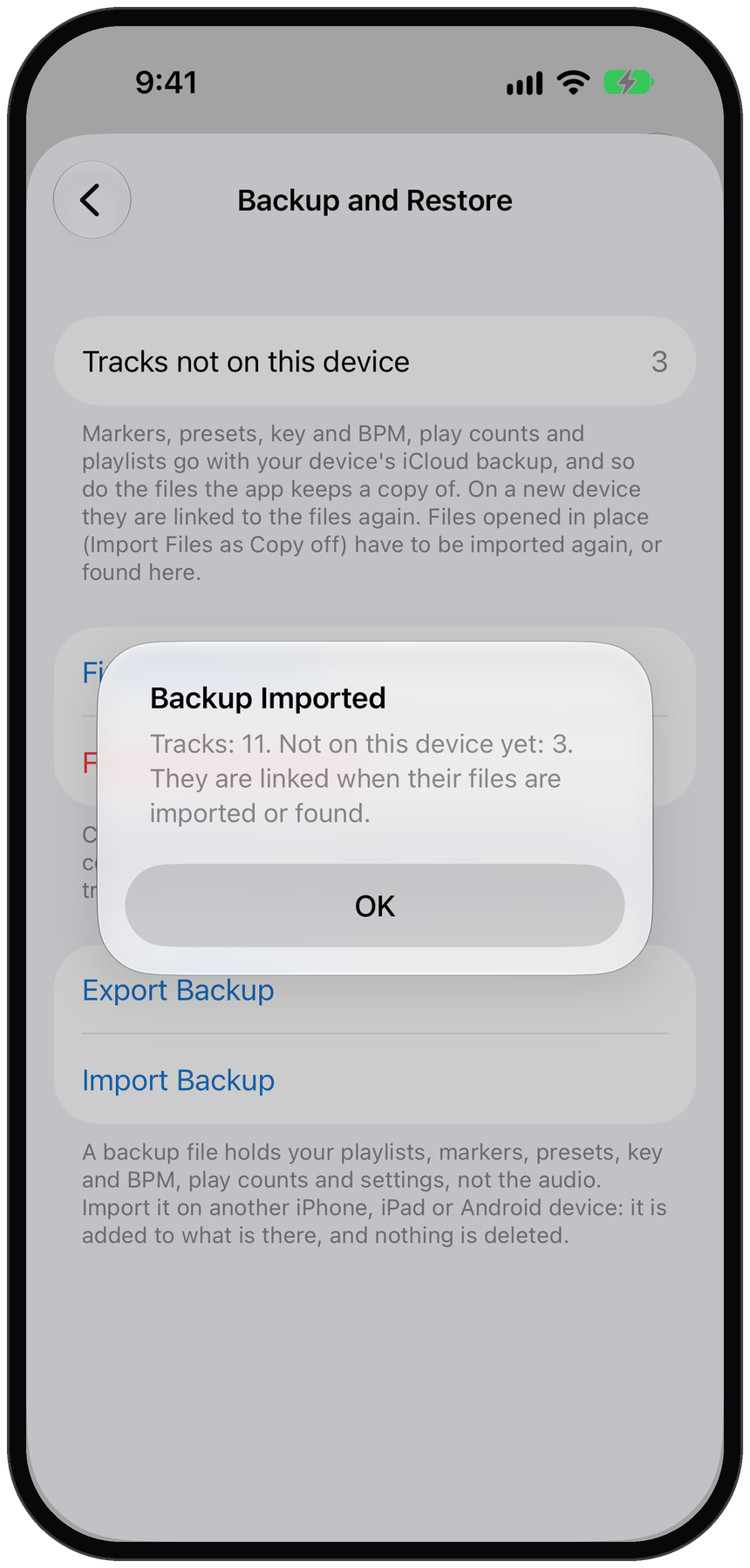
The backup is added to what's already on the device; nothing is deleted. The app's settings are set to the ones in the backup. When it is done, the app shows how many tracks were in the backup and how many of them aren't on this device yet.
If the app says the backup was made by a newer version, update Music Speed Changer from the App Store and import it again.
Missing Tracks
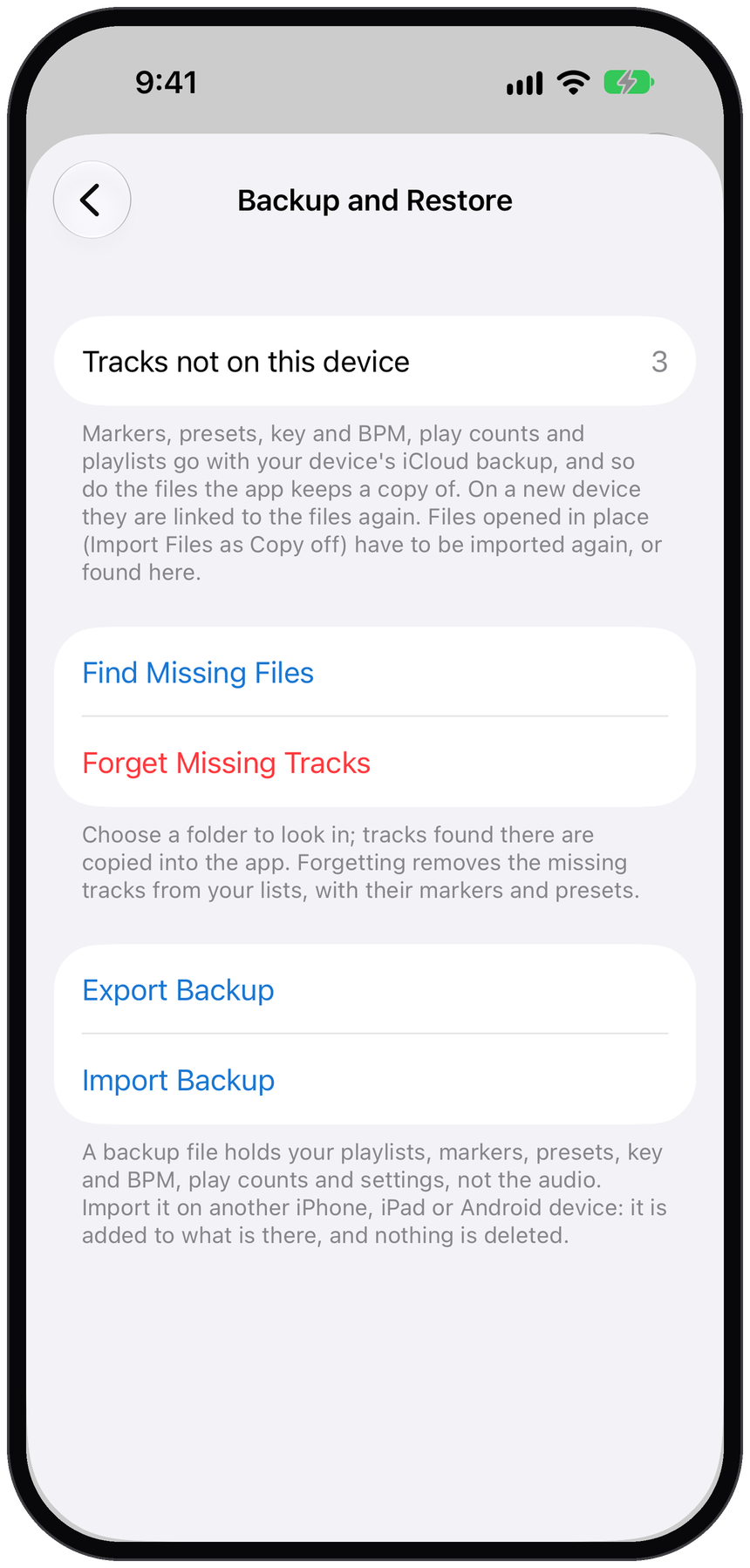
Tracks from a backup whose files aren't on the device stay in your playlists and lists, marked "Not on this device". Their markers and presets are kept, and they are linked as soon as the file is there. Tracks not on this device on the Backup and Restore screen shows how many there are. While there are any, two more buttons appear:
- Tap Find Missing Files and choose a folder that contains the music. Tracks found there are copied into the app and linked to your playlists and markers. Importing a missing file in the Files section links it too.
- If you don't have those tracks any more, tap Forget Missing Tracks. They are removed from Files, your playlists and the queue, together with their markers, presets and key and BPM. This can't be undone.
Moving Between iPhone and Android
Backup files work between the iPhone, iPad and Android apps.
- Android to iPhone or iPad: save a backup file in the Android app (version 13.10.0 or later), send it to your iPhone, and import it as described above.
- iPhone or iPad to Android: export a backup here and import it in the Android app, version 13.11.0 or later. An older version of the Android app says the file isn't a valid backup; update the app and try again.
Copy your music files to the other device as well; the app matches them to the backup even when they are stored in different folders. Songs downloaded with an Apple Music subscription are protected and can't be used on Android, so they stay listed as missing there.
Related Articles
How did we do?
Adding Plus and Minus Buttons to Controls
Adjusting the Pitch Shift Range
